Utter AI
Utter AI allows companies to train an AI Agent using their own business information.
You can provide information through:
- Uploaded documents
- Website scraping
Once the AI has been trained and enabled, the AI Agent can automatically respond to customer messages using the trained information. The AI can use information from both uploaded files and scraped website content to provide relevant responses.
Before you start
Before using Utter AI, make sure the following requirements are fulfilled:
- The company has an active package.
- Utter Admin has enabled AI for the company.
- The company has an active registered Utter number through which customers can send messages.
- The company provides valid business information through either document upload or website scraping.
Once these requirements are fulfilled, the company can access and configure Utter AI.
Step 1 — Open Utter AI
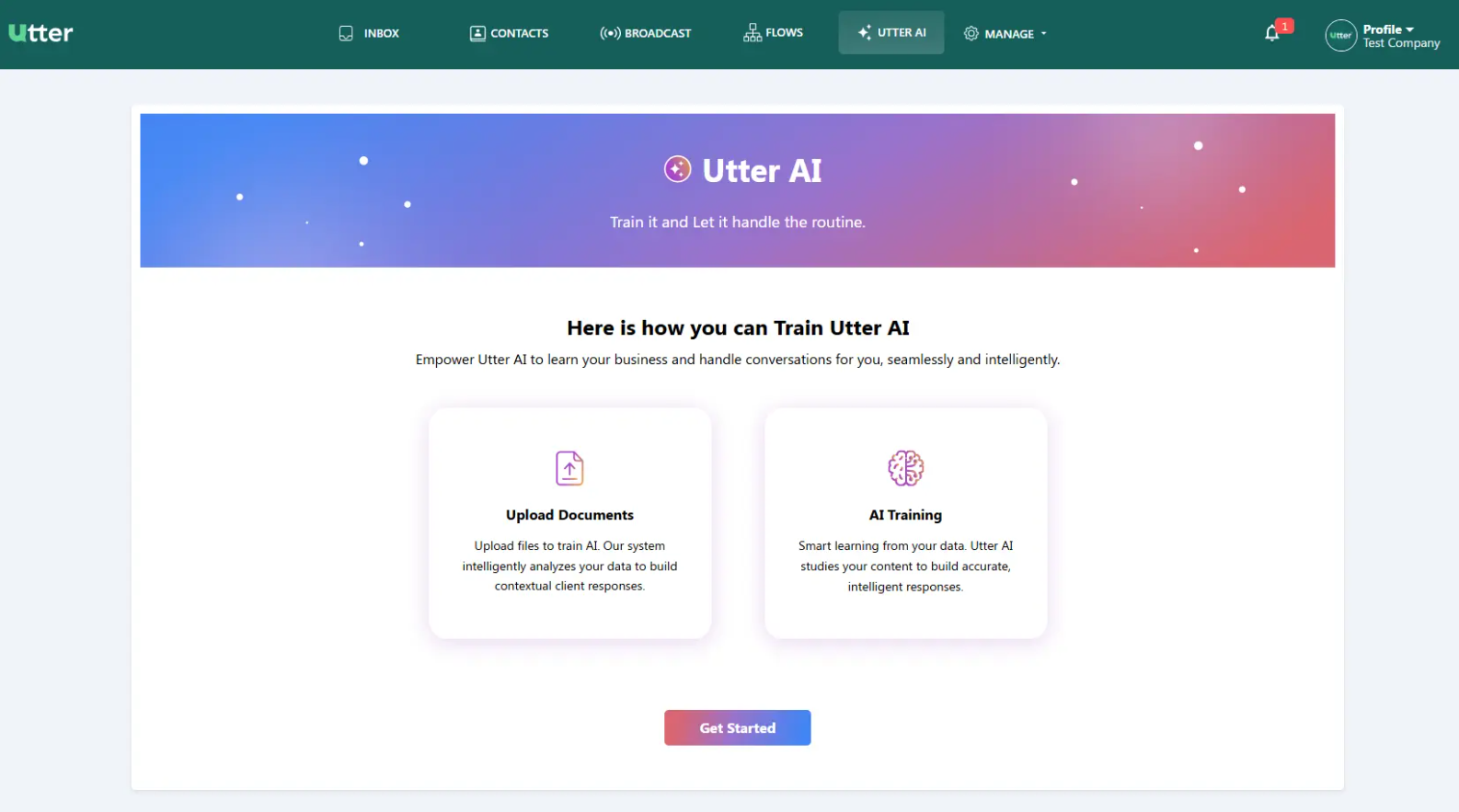
Click Utter AI from the top navigation menu.
On the Utter AI page, click Get Started.
You will see two options:
- Upload Documents — provide information through a file.
- AI Training — Utter AI uses the provided information to learn and respond to customer conversations.
Option 1 — Train AI using a document
Step 2 — Upload a document
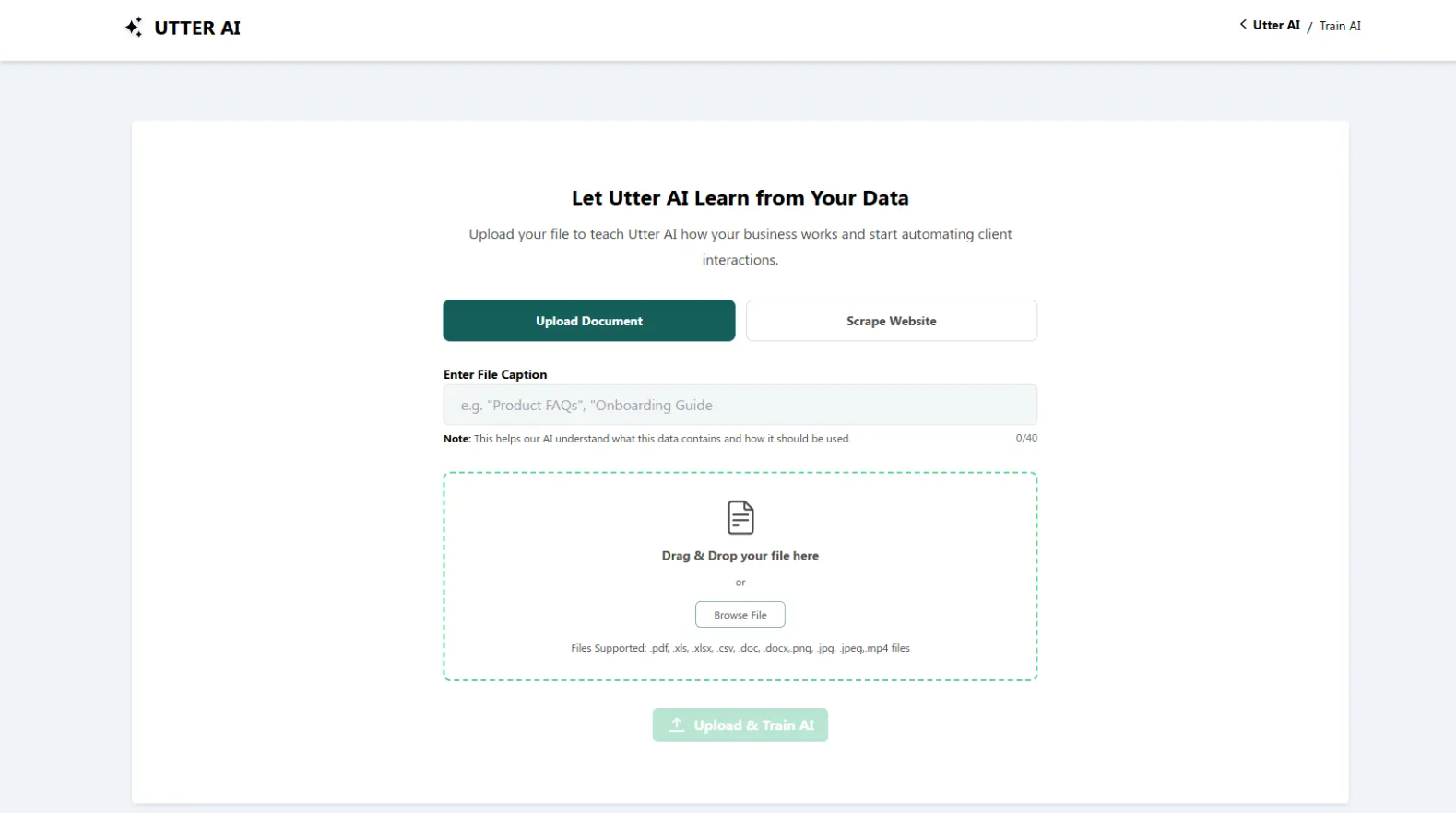
Click Upload Document.
Enter a File Caption
Enter a caption that describes the information contained in the file.
For example:
Onboarding Guide
Select your file
Upload the file by either:
- Dragging and dropping it into the upload area, or
- Clicking Browse File and selecting the file.
After selecting the file, click Upload & Train AI.
Step 3 — Wait for AI training
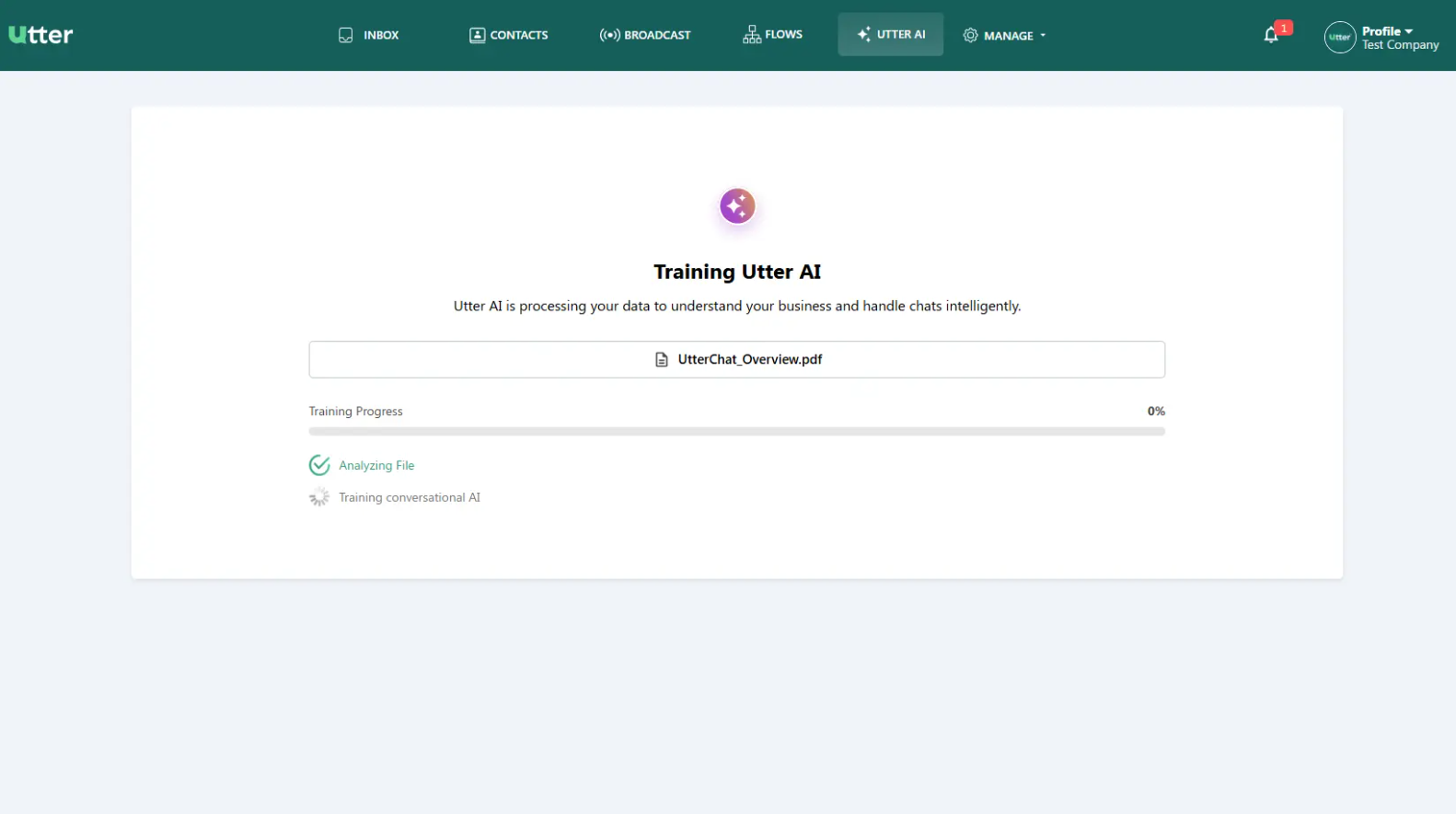
After the file is uploaded, Utter AI starts processing it.
You will see the following training stages:
Analyzing File
Utter AI analyzes the information contained in the uploaded file.
Training Conversational AI
The information from the file is used to train the AI.
Wait until the training process is completed.
Keep the training process running until it has completed before relying on the uploaded information for AI responses.
Option 2 — Train AI using your website
Step 4 — Scrape your website
You can also train Utter AI using information available on your website.
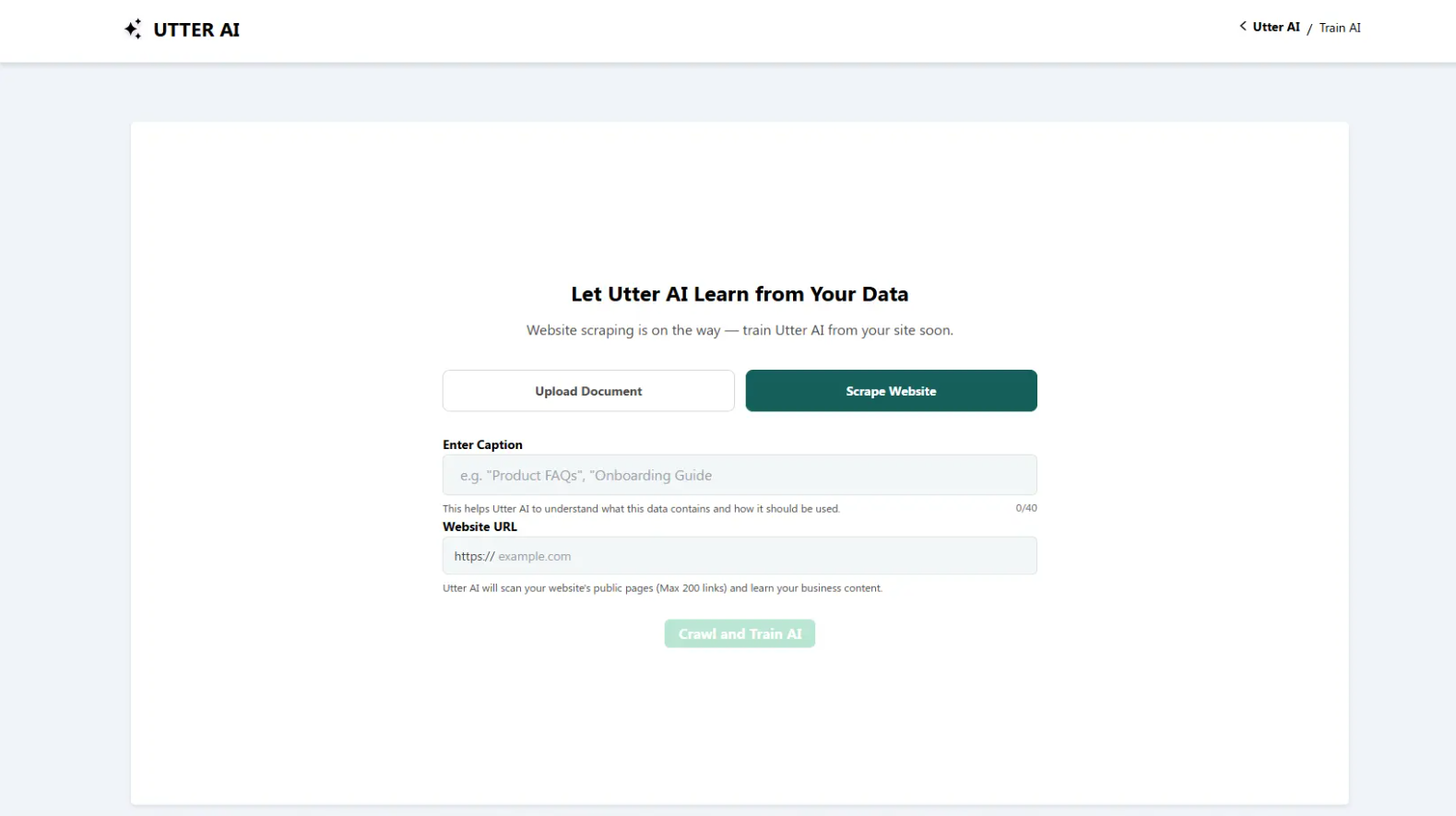
Click Scrape Website.
Enter a Caption
Enter a caption describing the website information.
Enter your Website URL
Enter the website URL that Utter AI should process.
For example:
https://utterchat.ai
Click Crawl and Train AI.
Utter AI connects to the website, reads the available pages, and uses the information to update its knowledge.
Keep training in the background
While the website is being processed, you can click Keep it running in background.
Step 5 — Check your training data
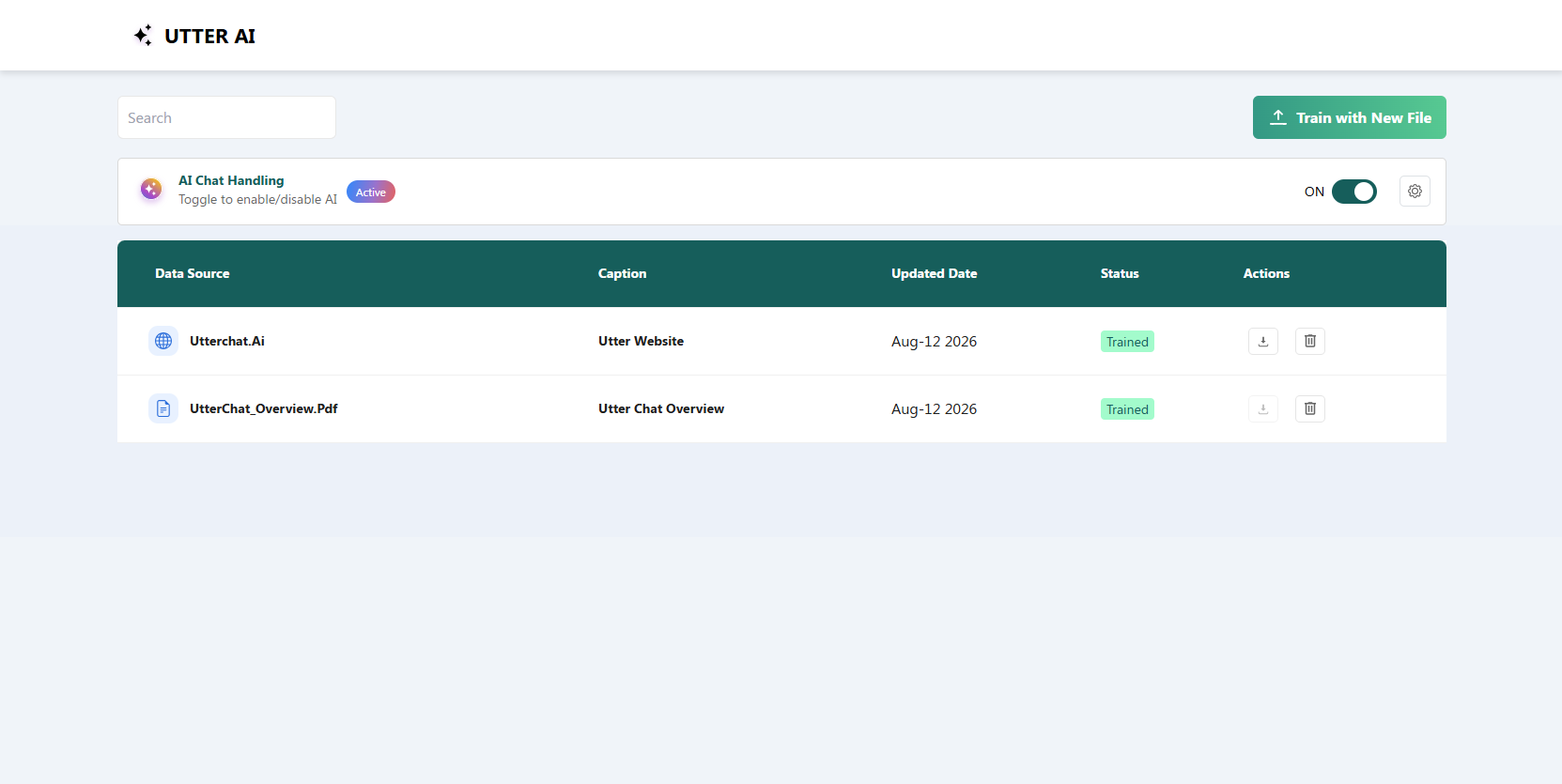
After training is completed, you return to the Utter AI data list.
Here you can see:
- Trained sources
- Captions
- Updated dates
- Status
The status should show Trained when the document or website has been successfully processed.
You can train AI using both:
- Uploaded documents
- Website data
Step 6 — Enable AI Chat Handling
On the Utter AI page, find AI Chat Handling.
Turn the toggle ON.
This allows the AI Agent to automatically handle incoming customer messages using the information it has learned.
Training your data and enabling AI Chat Handling are separate steps. Make sure the required training has completed before enabling AI Chat Handling.
Step 7 — Test your AI Agent
Send a message to your company's registered Utter number.
Ask a question related to the information you uploaded or scraped.
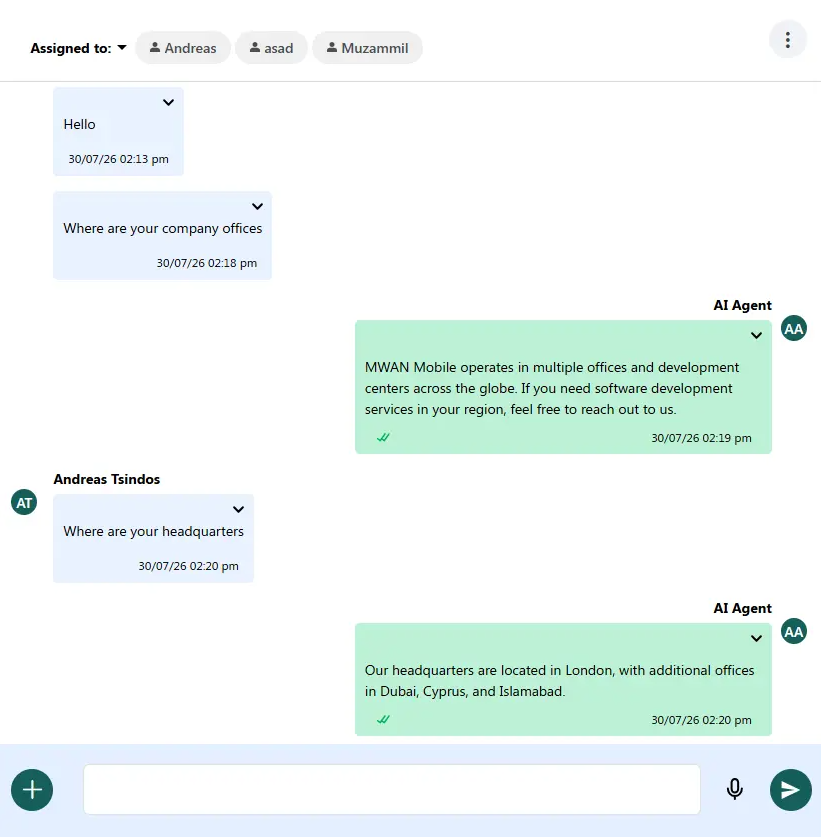
For example, if your website contains information about your company offices, you can ask:
Where are your company headquarters?
The AI Agent uses the trained information to generate the response.
The source provides an example response:
Our headquarters are located in London, with additional offices in Dubai, Cyprus, and Islamabad.
Step 8 — View the AI Agent response in Inbox
The customer's message and the AI Agent's response appear in the Inbox.
The AI Agent responds based on the information available in the documents and website content that you trained it with.
Document vs Website training
| Training source | What you provide | Action |
|---|---|---|
| Document | A file containing your business information | Upload & Train AI |
| Website | Website URL and caption | Crawl and Train AI |
Both sources can be used to train Utter AI.
Quick reference
| Step | Action |
|---|---|
| 1 | Open Utter AI → Get Started |
| 2 | Upload a document or choose website scraping |
| 3 | Enter the required caption/source information |
| 4 | Start AI training |
| 5 | Wait for the source status to become Trained |
| 6 | Turn AI Chat Handling ON |
| 7 | Send a test question to the registered Utter number |
| 8 | Review the AI response in Inbox |
Need more detail?
- See the Inbox guide for viewing customer messages and AI Agent responses.
- See the Notifications guide for notification-related functionality.