Tags
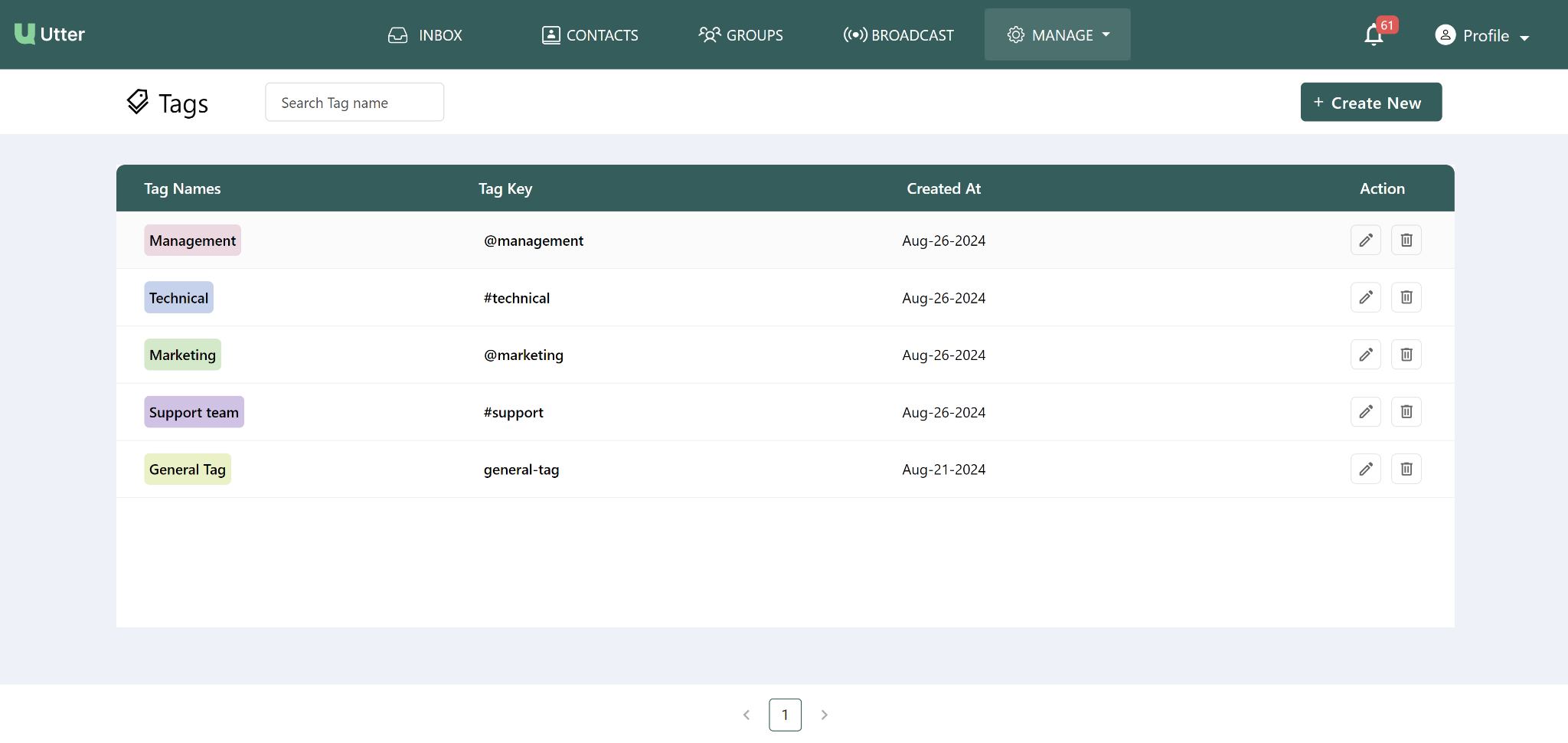
The Tags feature in Utter helps teams organize and manage conversations by assigning specific tags to them. Tags can be used to group customer service inquiries, sales leads, specific projects, or other types of conversations.
Tags workflow
Step 1 — Create a tag
To create a new tag:
- Open the Tags section.
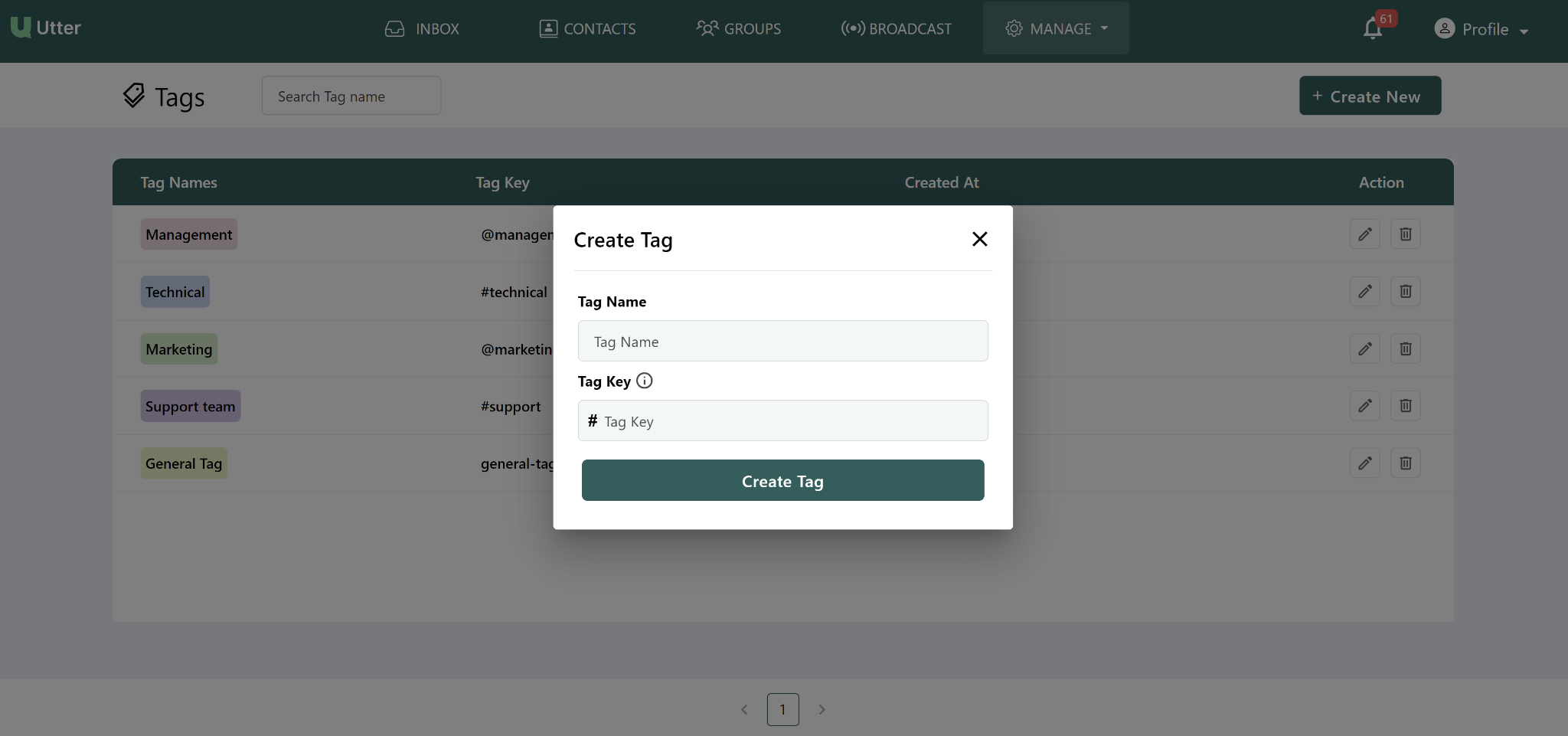
- Click Create New.
- A prompt window will open.
- Enter the required tag information.
- Create the tag.
The source documentation specifies two fields when creating a tag:
| Field | Description |
|---|---|
| Tag Name | Enter the name of the tag. |
| Tag Key | A unique identifier that links the tag to various elements within the app. |


Step 2 — Use a tag
After a tag has been created, it can be assigned to:
- Agent users of the Utter company app
- WhatsApp Widget
Tags can be used to organize customer service inquiries, sales leads, or specific projects. This can help teams manage conversations across multiple agents and handle high volumes of conversations more efficiently.
Use descriptive tag names so your team can easily understand what each tag represents.
Step 3 — Edit a tag
To update an existing tag:
- Locate the tag you want to change.
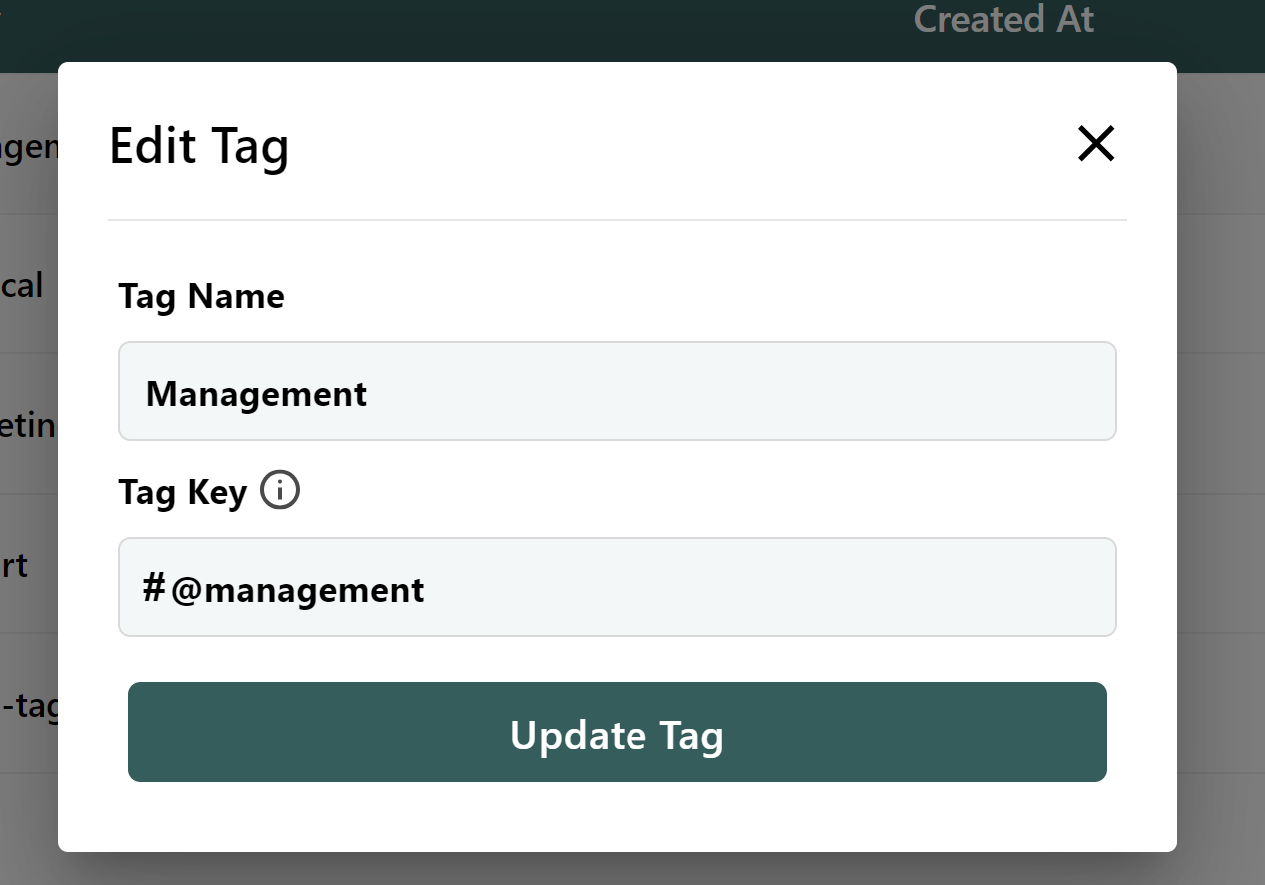
- Click the Edit icon next to the tag.
- Modify the Tag Name and/or Tag Key.
- Click Update Tag.
The provided documentation states that both the Tag Name and associated Tag Key can be modified.
Step 4 — Delete a tag
To delete a tag:
- Locate the tag you want to remove.
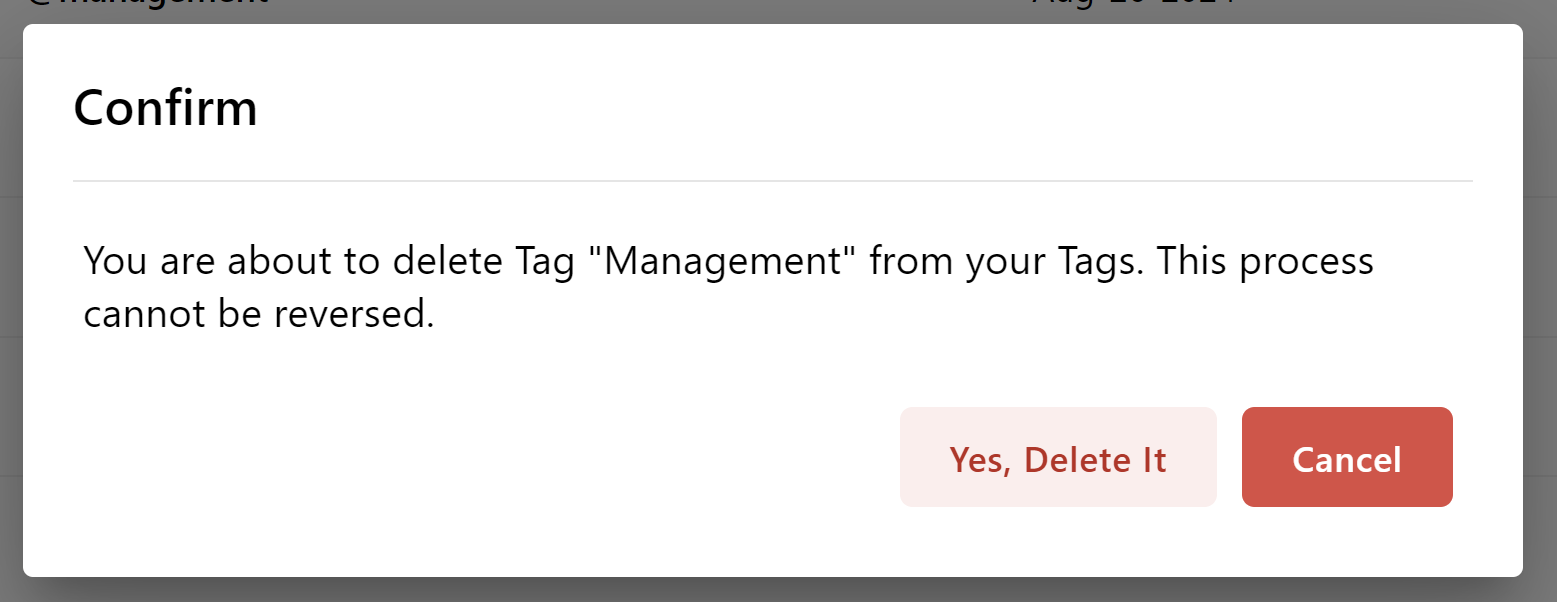
- Click the Delete icon.
- Review the confirmation prompt.
- Click Yes, Delete it to confirm.
The tag will then be permanently removed.
Deleting a tag is irreversible according to the provided documentation. Once deleted, the tag cannot be recovered, and associated data or references to the tag will be removed.
Quick reference
| Action | Steps |
|---|---|
| Create | Click Create New → enter Tag Name and Tag Key → create the tag |
| Assign | Assign the created tag to agent users or the WhatsApp Widget |
| Edit | Click Edit → modify Tag Name/Tag Key → Update Tag |
| Delete | Click Delete → Yes, Delete it |
Need more detail?
- See the Users guide for managing agent users.
- See the Contacts guide for managing contacts and groups.
- See the Broadcast guide for sending broadcasts.