Verification results
After Meta reviews your details, Utter shows one of these results on step 3 — Verification.
Success — everything verified
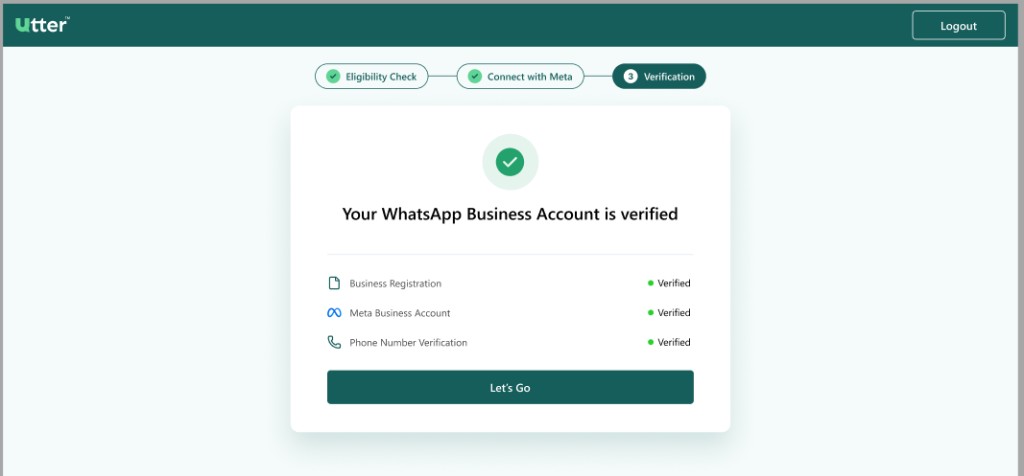
You will see:
- A green checkmark
- Message: Your WhatsApp Business Account is verified
- All three items marked Verified:
- Business Registration
- Meta Business Account
- Phone Number Verification
Click Let's Go to enter Utter and start using WhatsApp features.
Next tip You may still need to finish Meta billing / payment method setup in WhatsApp Manager before sending paid business messages. If Utter prompts you, follow those instructions.
Partial failure — something needs attention
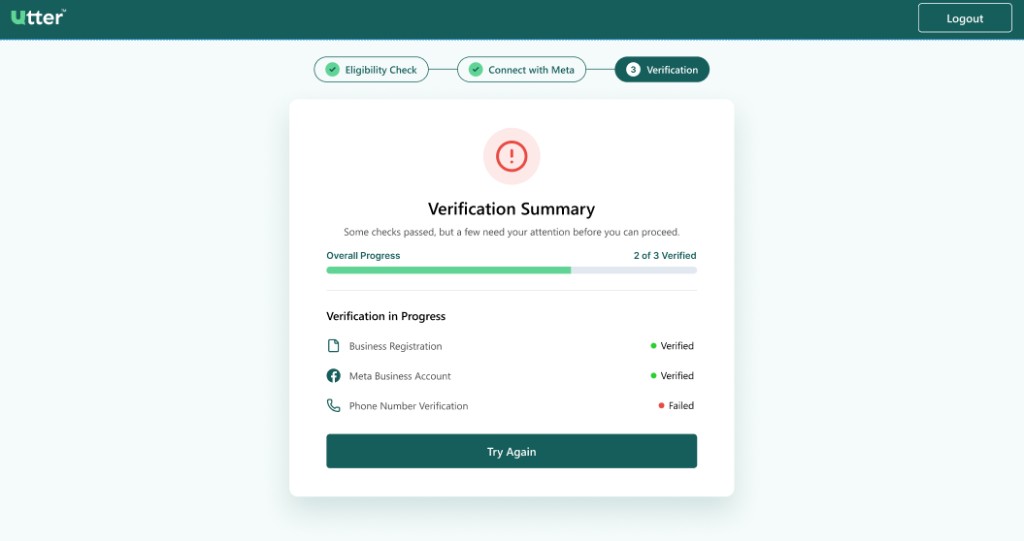
This screen means some checks passed, but not all.
Example from the screenshot:
| Item | Status |
|---|---|
| Business Registration | Verified |
| Meta Business Account | Verified |
| Phone Number Verification | Failed |
| Overall progress | 2 of 3 Verified |
What to do
- Read which item shows Failed
- Click Try Again
- For phone failures, common fixes:
- Use a number not registered on WhatsApp / WhatsApp Business App
- Confirm you can receive SMS or voice OTP
- Enter the correct country code
- Wait a few minutes and request a new code if the previous OTP expired
- Complete Meta’s phone steps again, then return to Utter to refresh status
If Business Registration failed instead, update documents/name/website in Meta and retry.
Manual verification required
You may see: Your WhatsApp Business Account needs manual verification.
Typical status mix:
| Item | Example status |
|---|---|
| Business Registration | Pending |
| Meta Business Account | Verified |
| Phone Number Verification | Verified |
This usually means Meta accepted your WhatsApp/phone connection, but still needs to manually confirm your business identity.
Why was my business not approved?
Common reasons:
- Business information doesn’t match public records
- Submitted documents are unclear or expired
- Business website URL is invalid or inaccessible
- Mismatch between business name and documentation
- Incomplete or missing required information
How to fix this
- Verify your legal business name matches official documents exactly
- Ensure your business address is consistent across Meta, documents, and website
- Upload clear, high-resolution copies of valid documents
- Check that your website is live and shows matching business info
- Re-submit verification in Meta after corrections
Follow the detailed Meta walkthrough (with screenshots): Submit business info on Meta
Use the button on this screen to open support guidance. If you are stuck, use Contact our support team under the card.
Still stuck?
See Help & common questions for phone, Facebook login, and document issues.