Notifications
The Notification Bell Icon in Utter is a central feature for receiving updates and alerts about new messages, interactions, and other important activities.
Step 1 — Open Notifications
Locate the Notification Bell Icon in the Utter interface.
The notification bell provides access to updates and alerts related to activity in the platform, including new messages and interactions.

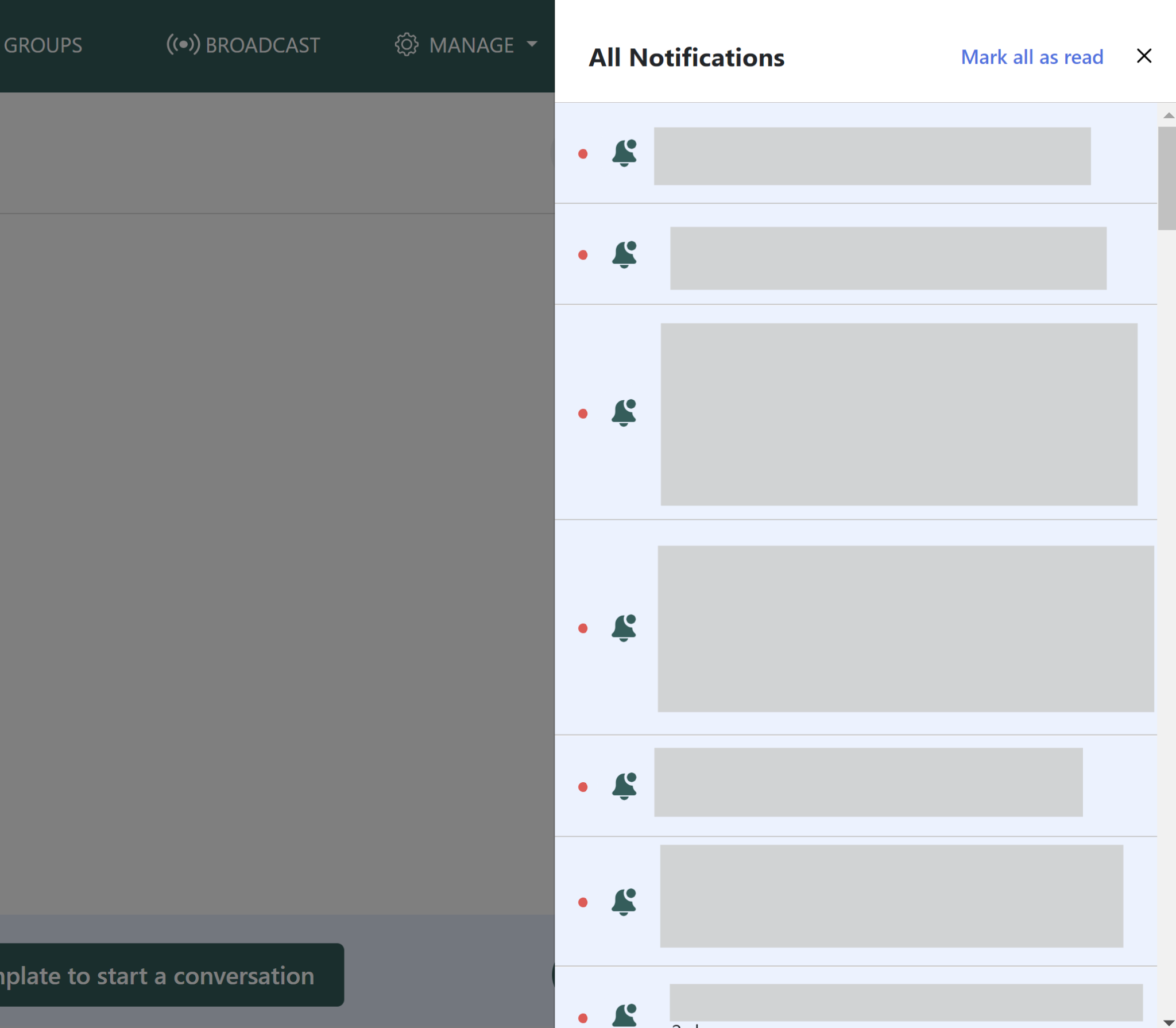
Step 2 — View active notifications
Click the Notification Bell Icon.
A right-side slider opens and displays all the active notifications.
Use this panel to review the notifications currently available to you.
The provided source specifically describes the right-side slider as displaying active notifications. It does not provide additional details about notification categories, marking notifications as read, or deleting notifications.
Enable notifications
The source documentation provides a separate detailed document for enabling notifications.
To enable notifications, refer to the detailed notification-enablement document.
The uploaded source does not contain the detailed steps for enabling notifications, so they have not been added here.
Quick reference
| Action | Result |
|---|---|
| Click Notification Bell | Opens the notification panel |
| View notifications | Displays active notifications in the right-side slider |
| Enable notifications | Refer to the separate detailed notification-enablement document |
Need more detail?
Refer to the separate Enable Notifications documentation for instructions on enabling notifications.