Inbox
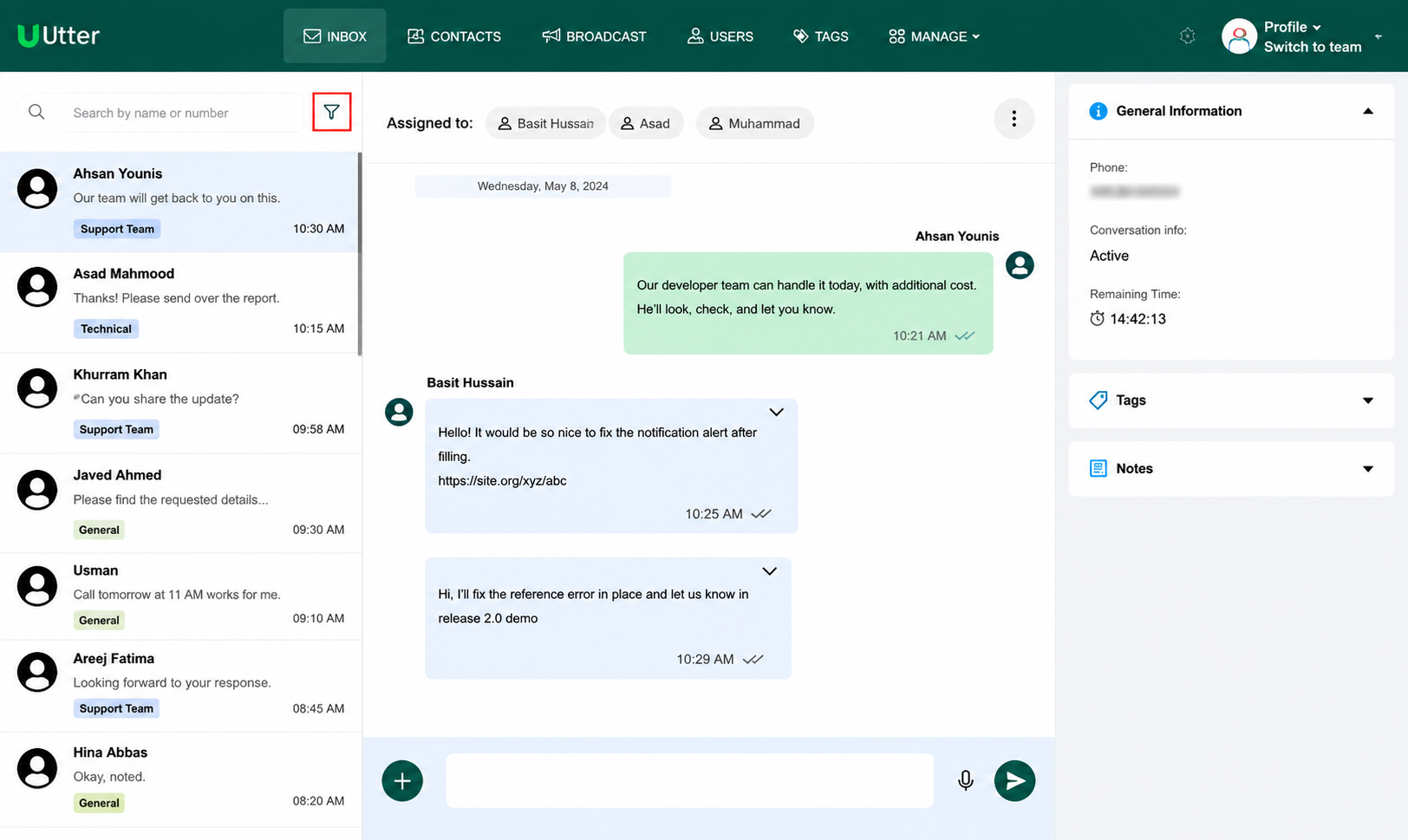
The Inbox is where you talk to customers on WhatsApp. You can reply to messages, assign chats to agents, add tags and notes, send templates, and filter conversations.
When a customer replies to a broadcast (or any message), the conversation appears here. You have a 24-hour response window. If nobody replies in that window, further free-form messages in that thread are disabled until you start again with a template.
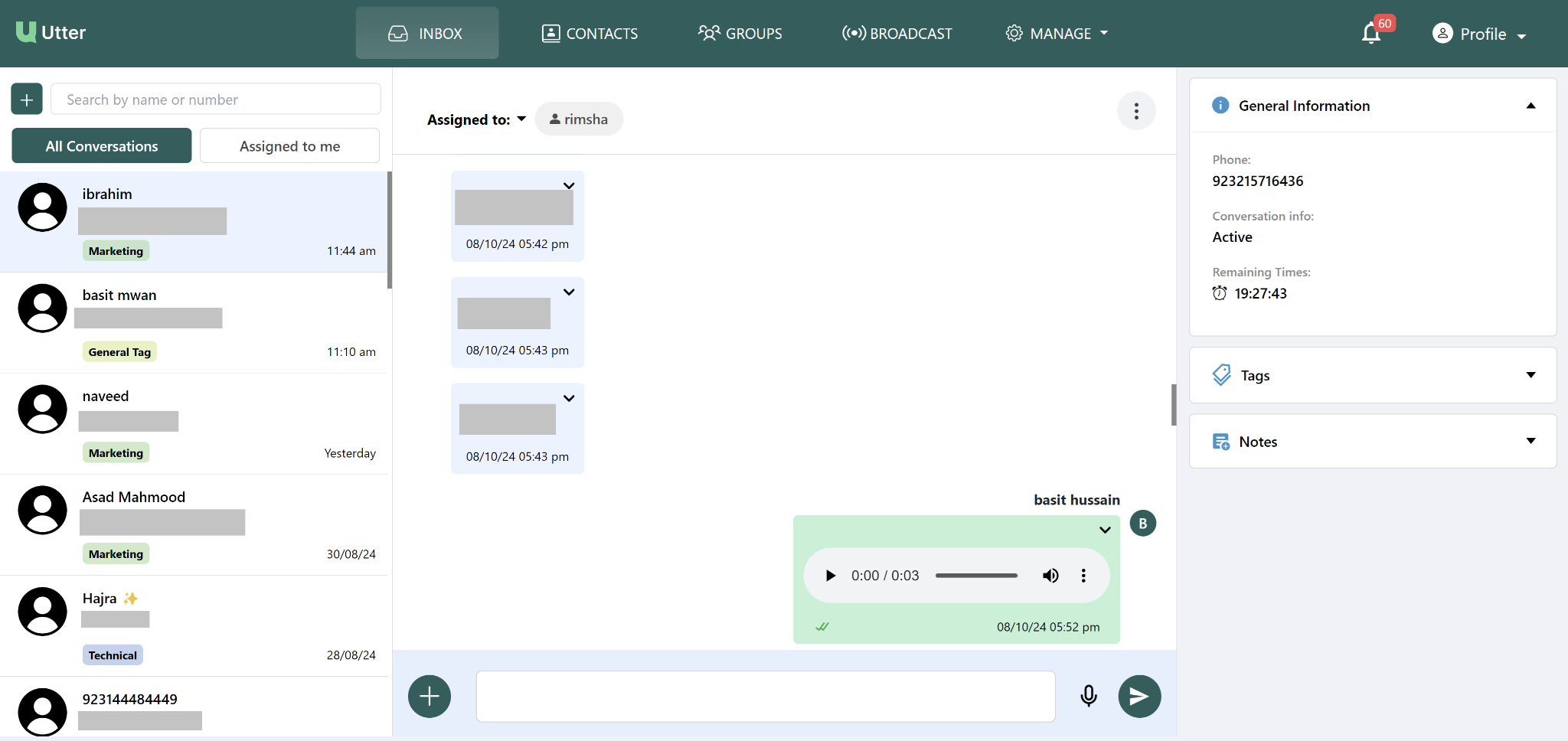
Step 1 — Initiate a new chat
Start a new chat from the Inbox:
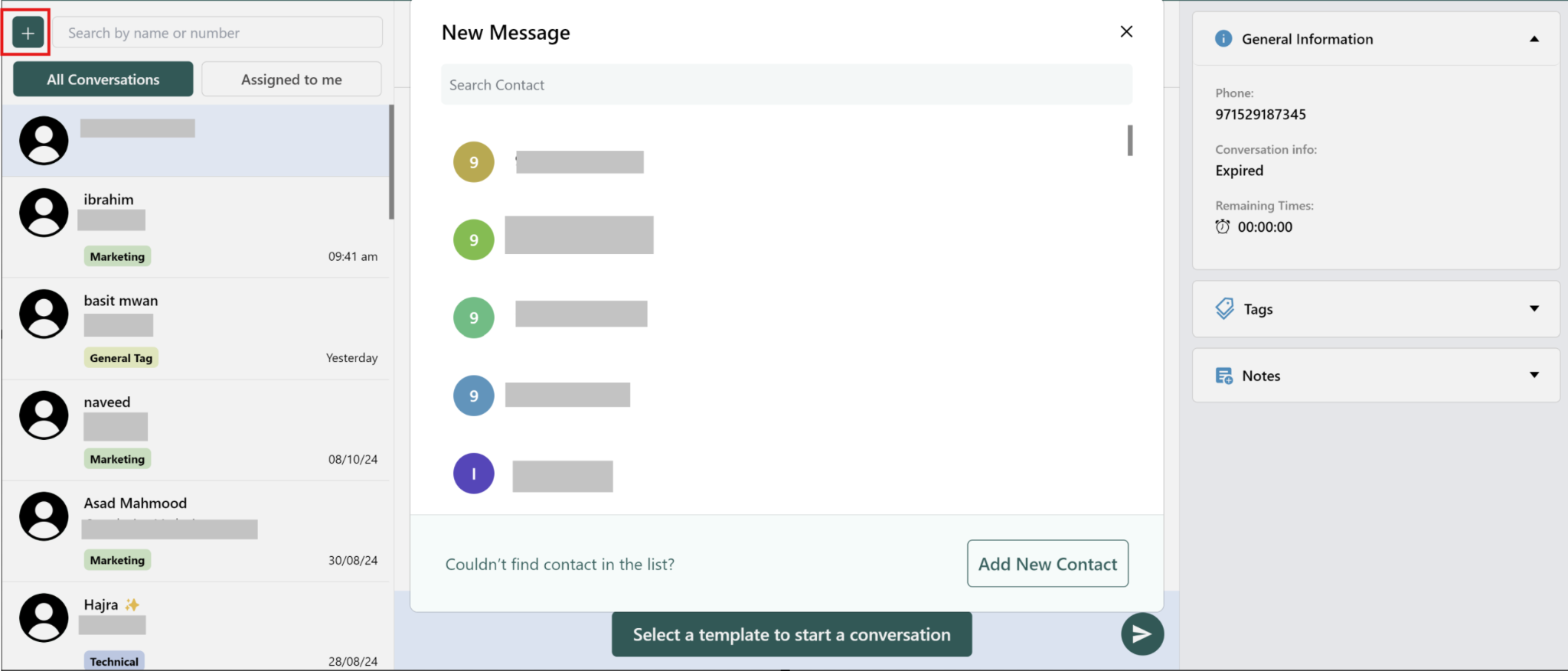
- Click the + icon in the top-left corner (next to search).
- Search and select the contact / phone number.
- The chat window for that contact opens.
If the contact is not in the list, use Add New Contact.
Step 2 — Start the conversation with a template
When the chat window opens (especially if the 24-hour window has expired), click Select a template to start a conversation.
A pop-up lists available templates. Choose the one you want to send to begin the conversation.
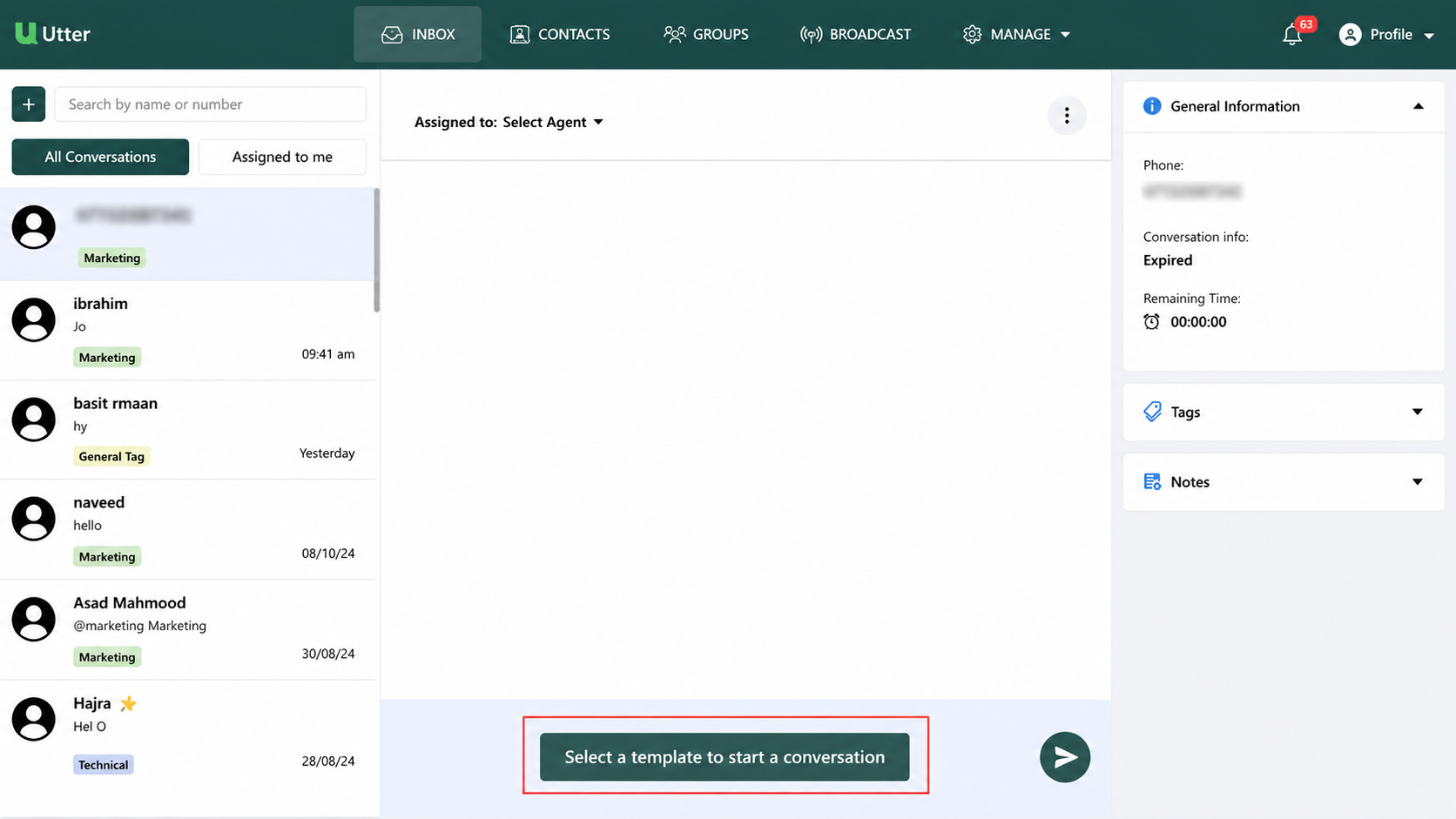
If the conversation is Expired, you must send a template first. Free-form chat is only available while the conversation is Active.
Step 3 — Search for a conversation
Use the Inbox search to find a conversation quickly.
You can search by:
- Name
- Phone number
The conversation list filters as you type.
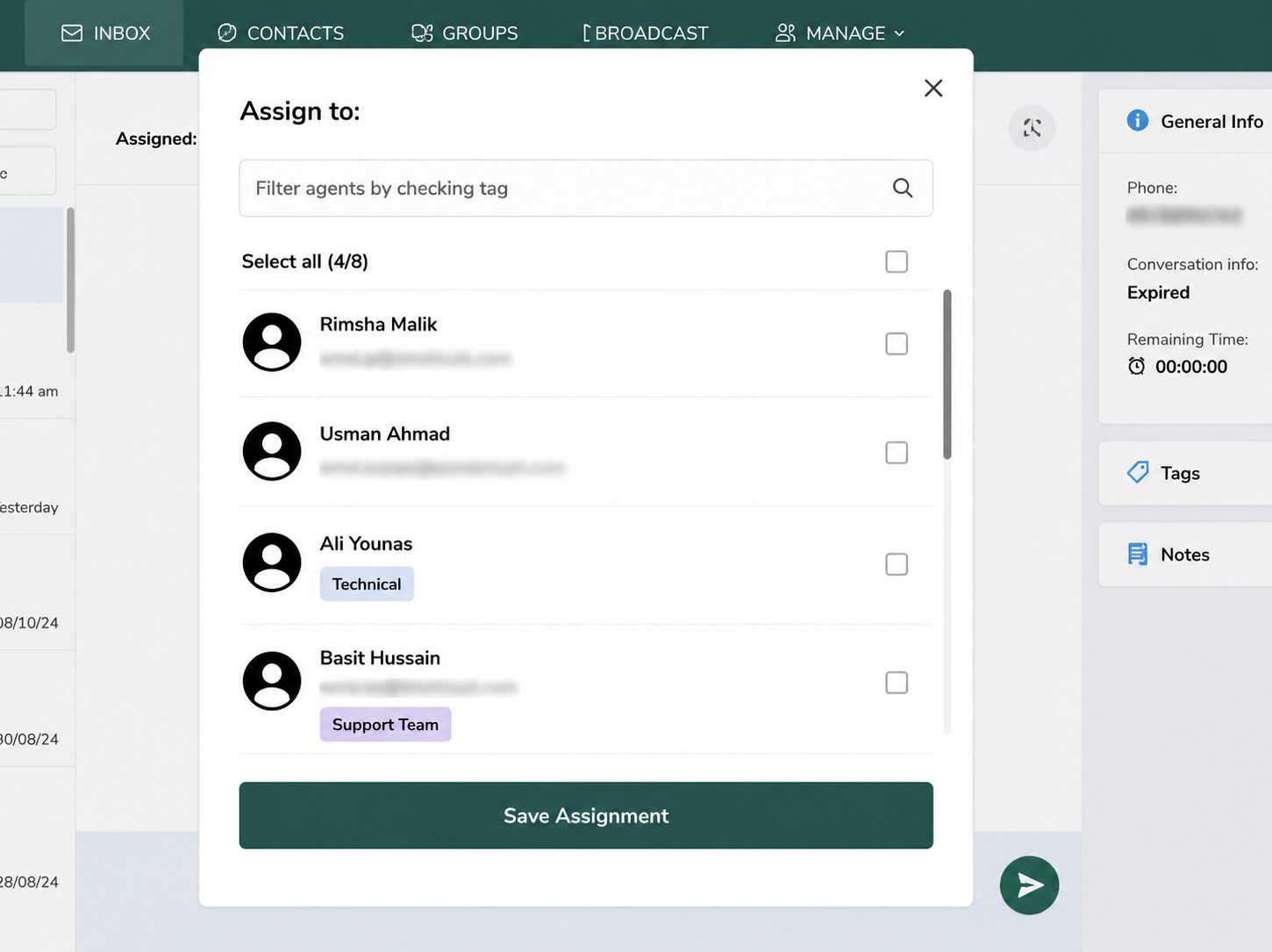
Step 4 — Assign a conversation to an agent
Admins can assign incoming chats to one or more agents.
- Open the Assigned to dropdown at the top of the chat.
- Select one or more agents (optionally filter agents by tag).
- Click Save Assignment.

Conversation views
All Conversations
Shows every Inbox conversation in Utter.
Assigned to me
Shows only chats assigned to the agent who is currently logged in.
Conversation information
When a conversation is open, the right panel shows General Information:
| Field | What it means |
|---|---|
| Phone | Customer's WhatsApp number |
| Conversation info | Active or Expired |
| Remaining Time | Time left in the 24-hour reply window |
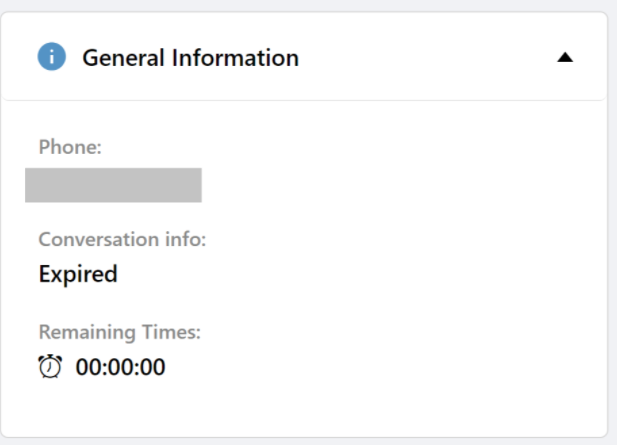
Watch the remaining response time. If the 24-hour window expires, further free-form messages are disabled until you start again with a template.
Manage conversation tags
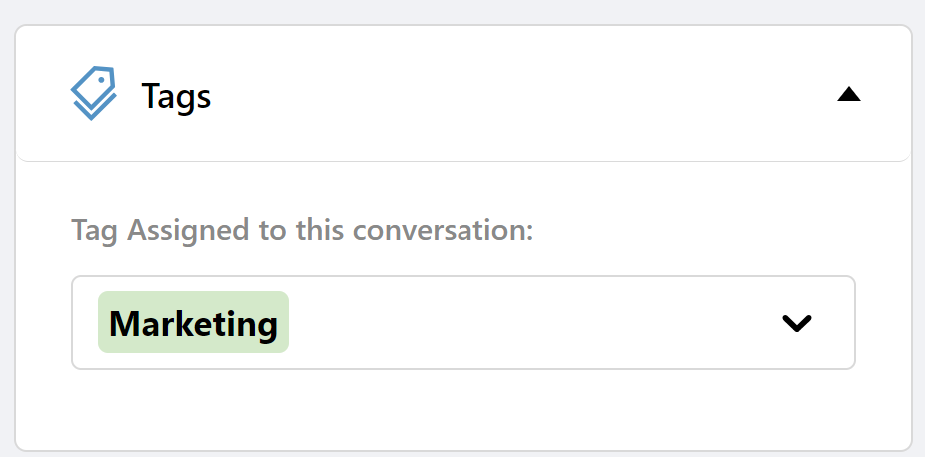
Assign a Tag to organize conversations (for example Marketing, Technical, Support).
- Open the Tags section on the right.
- Choose a tag from the dropdown.
Add notes to a conversation
Admins and agents can leave internal notes on a conversation (customers do not see these).
- Open the conversation.
- Open Notes on the right.
- Click + Write a Note and enter the note.
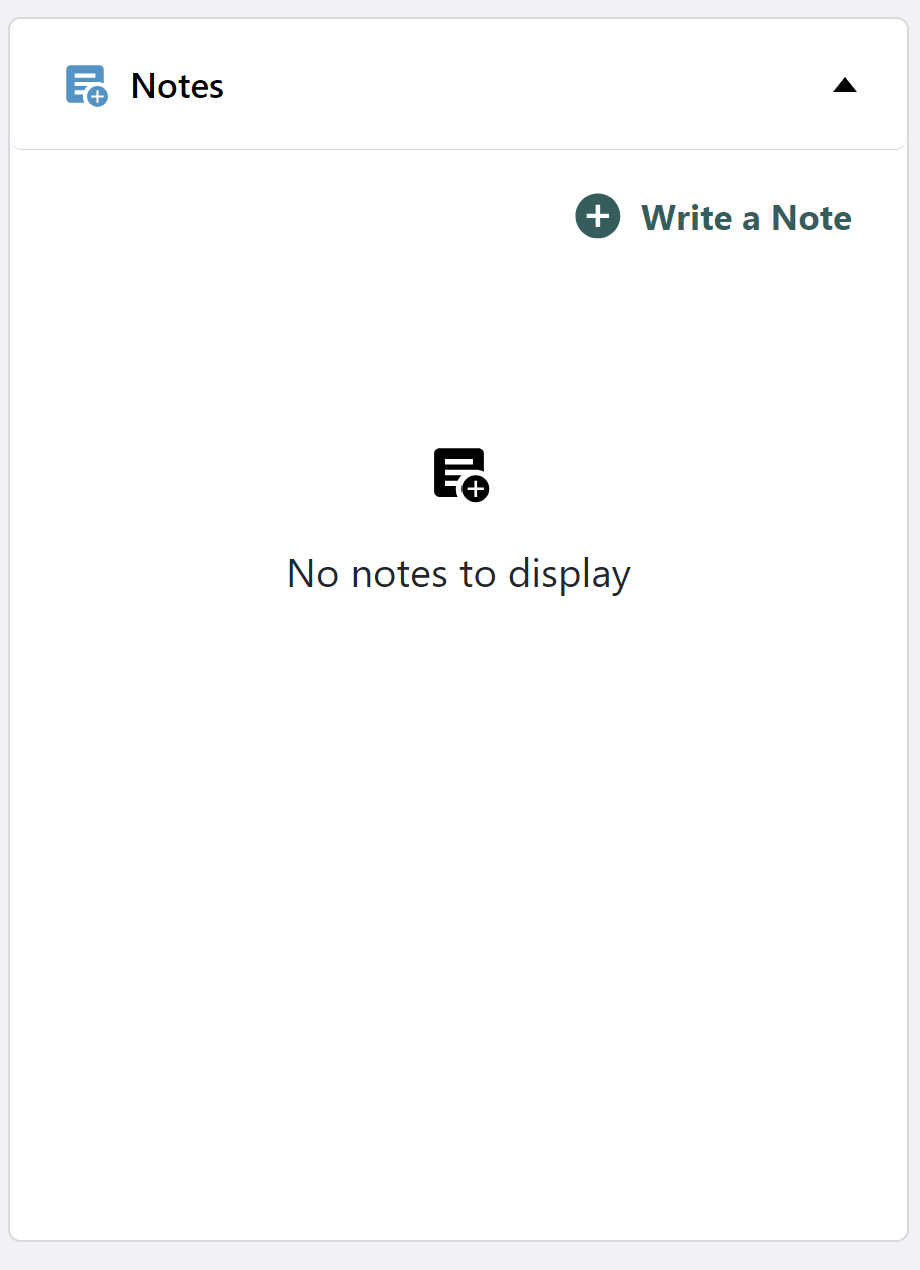
Use notes to leave context for the next agent who handles the same chat.
Send attachments
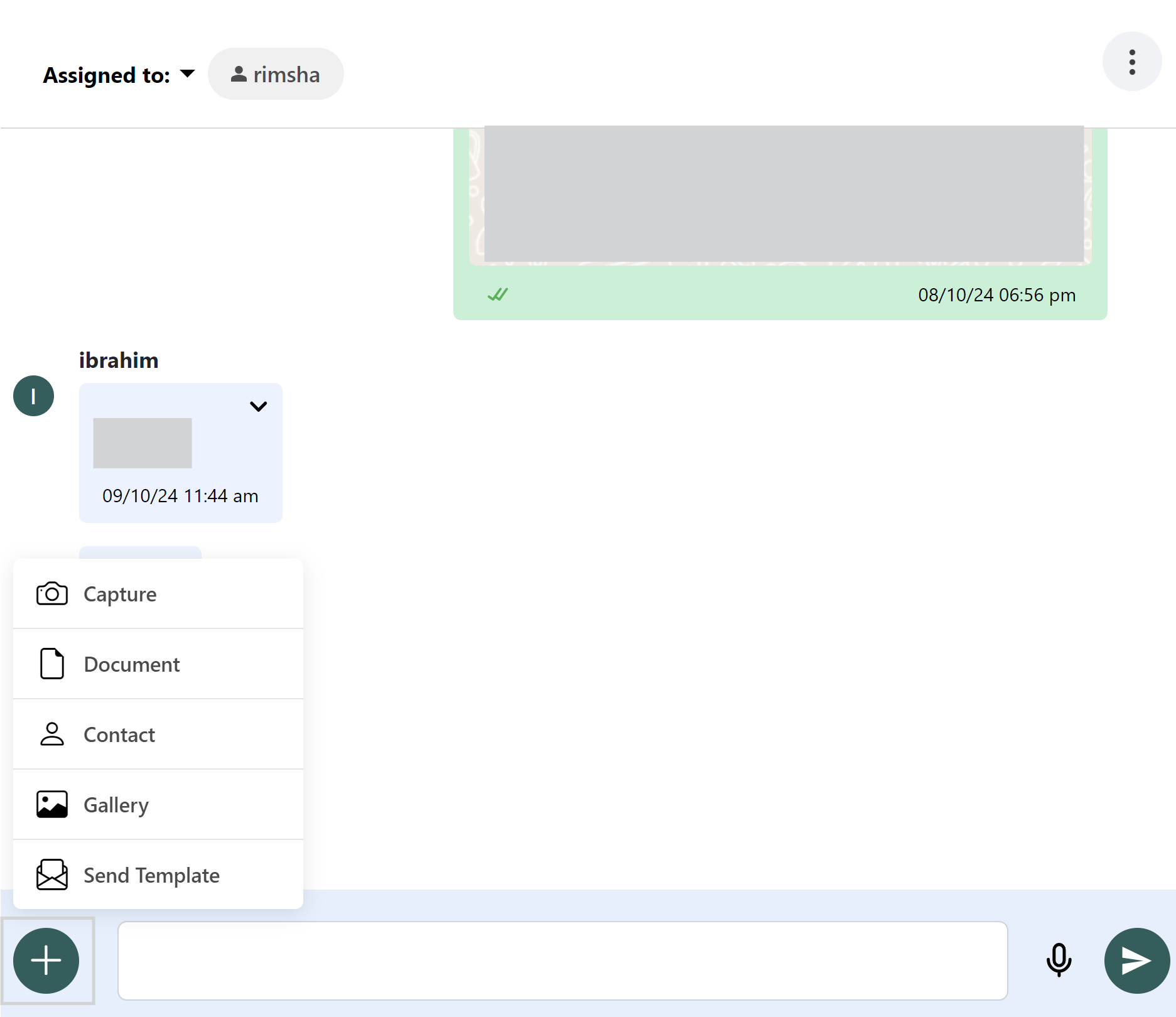
Click the + icon on the left of the message bar to attach files or extra message types.
| Option | Description |
|---|---|
| Capture | Take and send a photo with the camera |
| Document | Attach a file / document |
| Contact | Share a contact |
| Gallery | Attach an image from the gallery |
| Send Template | Send a predefined template |
Record and send a voice note
- Click the microphone icon in the message bar.
- Record the voice note.
- Send it in the conversation.
Send a chat message
Type a normal message in the input bar, then click the send (paper plane) button. You can also send an attachment or voice note the same way.
Filter Inbox conversations
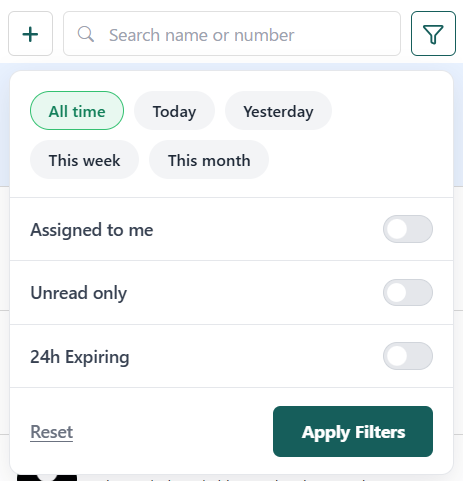
Click the filter icon next to search to narrow the conversation list.
You can filter by:
- Search by name or number
- Time period: All time, Today, Yesterday, This week, This month
- Assigned to me
- Unread only
- 24h Expiring
Then click Apply Filters. Use Reset to clear filters.
Quick reference
| Feature | What it does |
|---|---|
| Initiate Chat | Starts a new conversation with a selected contact |
| Search Contact | Finds chats by name or phone number |
| Assigned to | Assigns a conversation to one or more agents |
| All Conversations | Displays all Inbox messages |
| Assigned to me | Displays chats assigned to the logged-in agent |
| Tags | Assigns a tag to a conversation |
| Write note | Adds an internal note for admins/agents |
| Attachments | Sends images, documents, contacts, and templates |
| Voice Note | Records and sends a voice note |
| Filter | Narrows conversations by search, time, and status |
Need more detail?
- Utter Flows Guide for automated keyword flows
- Onboarding Guide if WhatsApp is not connected yet