Contacts
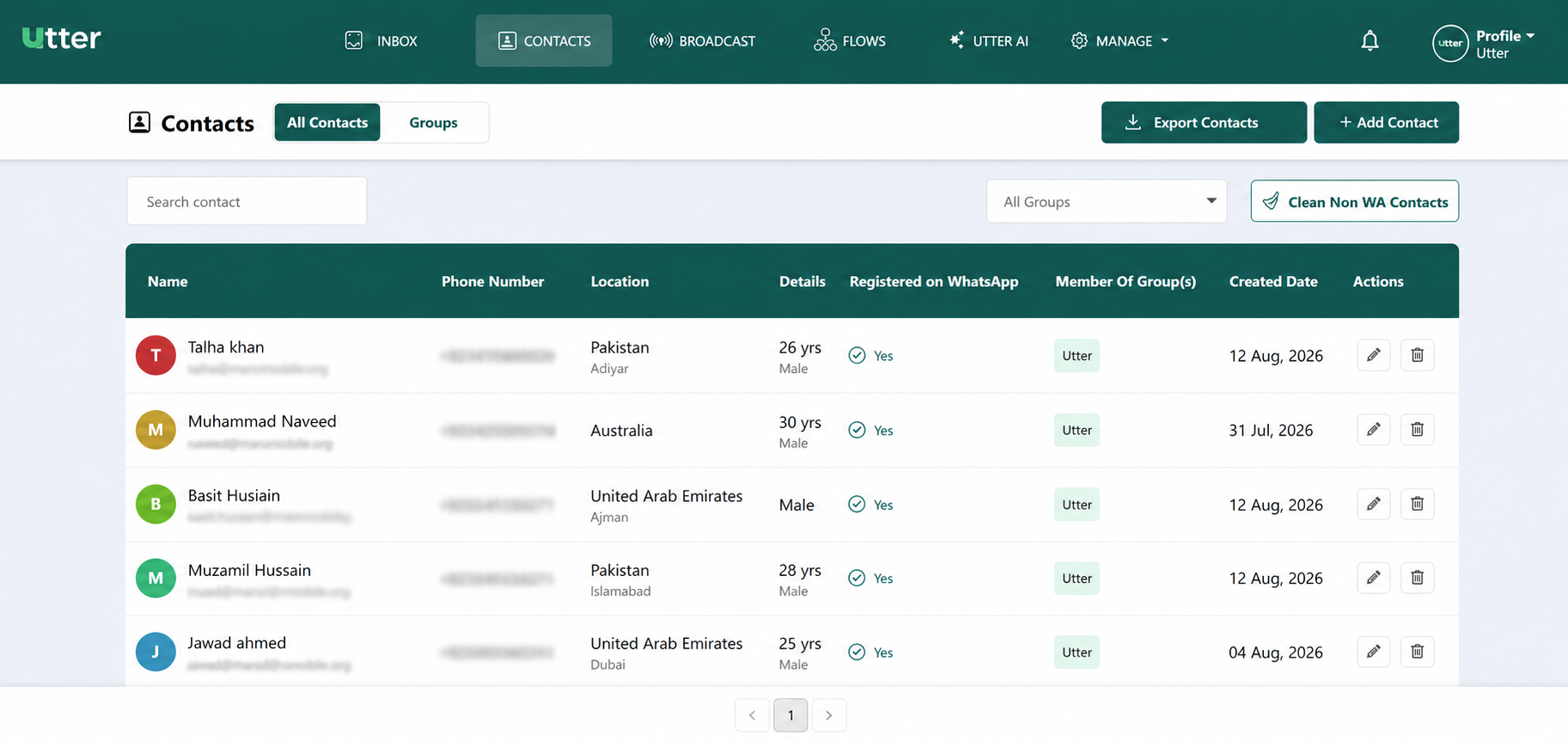
The Contacts section in Utter allows admins and agents to view and manage contacts from one place. Contacts are displayed in a table with key information such as name, email, age, gender, phone number, location, WhatsApp registration status, group membership, and creation date.
Add a contact
To add a new contact, click Add Contact. A pop-up window opens where you can enter the contact's information.
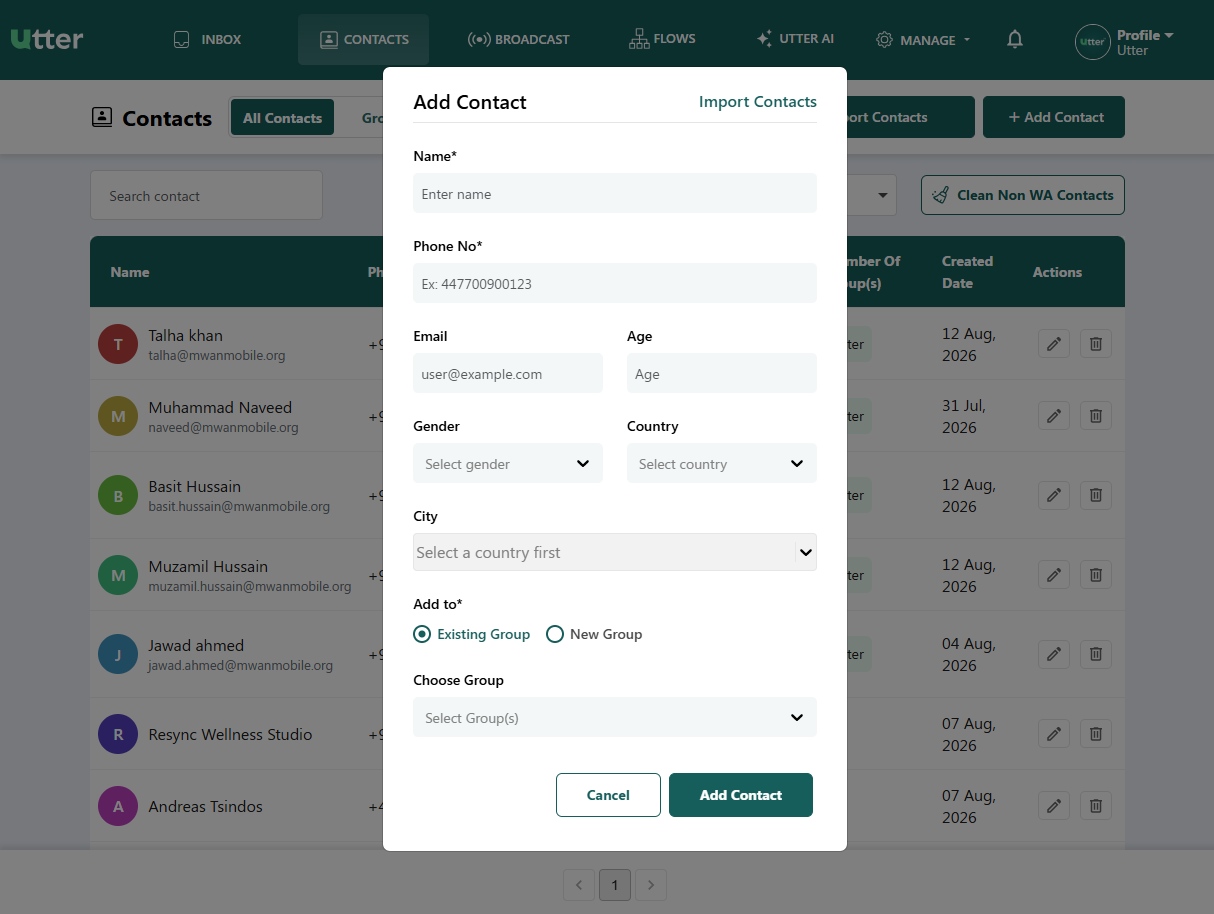
The available fields are:
| Field | Required | Description |
|---|---|---|
| Name | Yes | Enter the full name of the contact. |
| Email Address | No | Enter the email address associated with the contact. |
| Age | No | Enter the contact's age. |
| Gender | No | Select the appropriate gender from the available options. |
| Phone Number | Yes | Enter the valid phone number of the contact. |
| Location | No | Enter the contact's physical location or city. |
| Group Membership(s) | No | Assign the contact to an existing group or create a new group. |
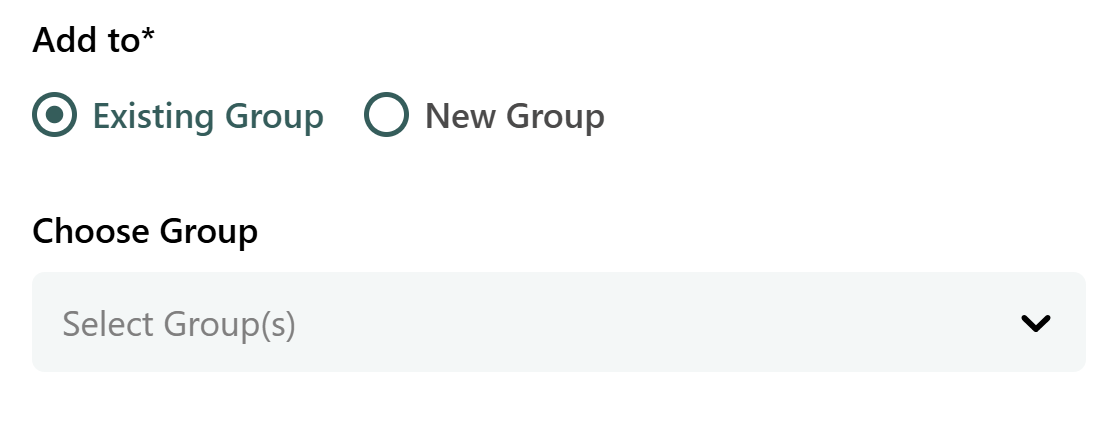
Add the contact to an existing group
Select Existing Group, then choose the required group from the dropdown.
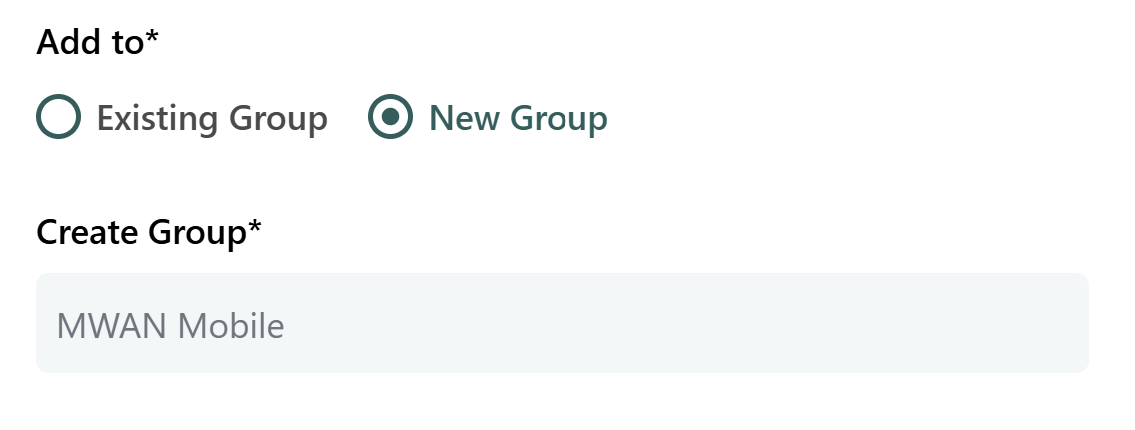
Create a new group while adding a contact
Select New Group and enter the name of the group.
After entering the required information, click Add Contact to save the contact.
Import contacts from a CSV file
You can add multiple contacts at once by importing a CSV file.
- Click Add Contact.
- Select Import Contacts.
- Download the preformatted CSV template if required.
- Add the contact information to the CSV file. The import requires columns for the name and phone number.
- Upload the completed CSV file.
- Select an existing group or create a new group for the imported contacts.
- Click Import.
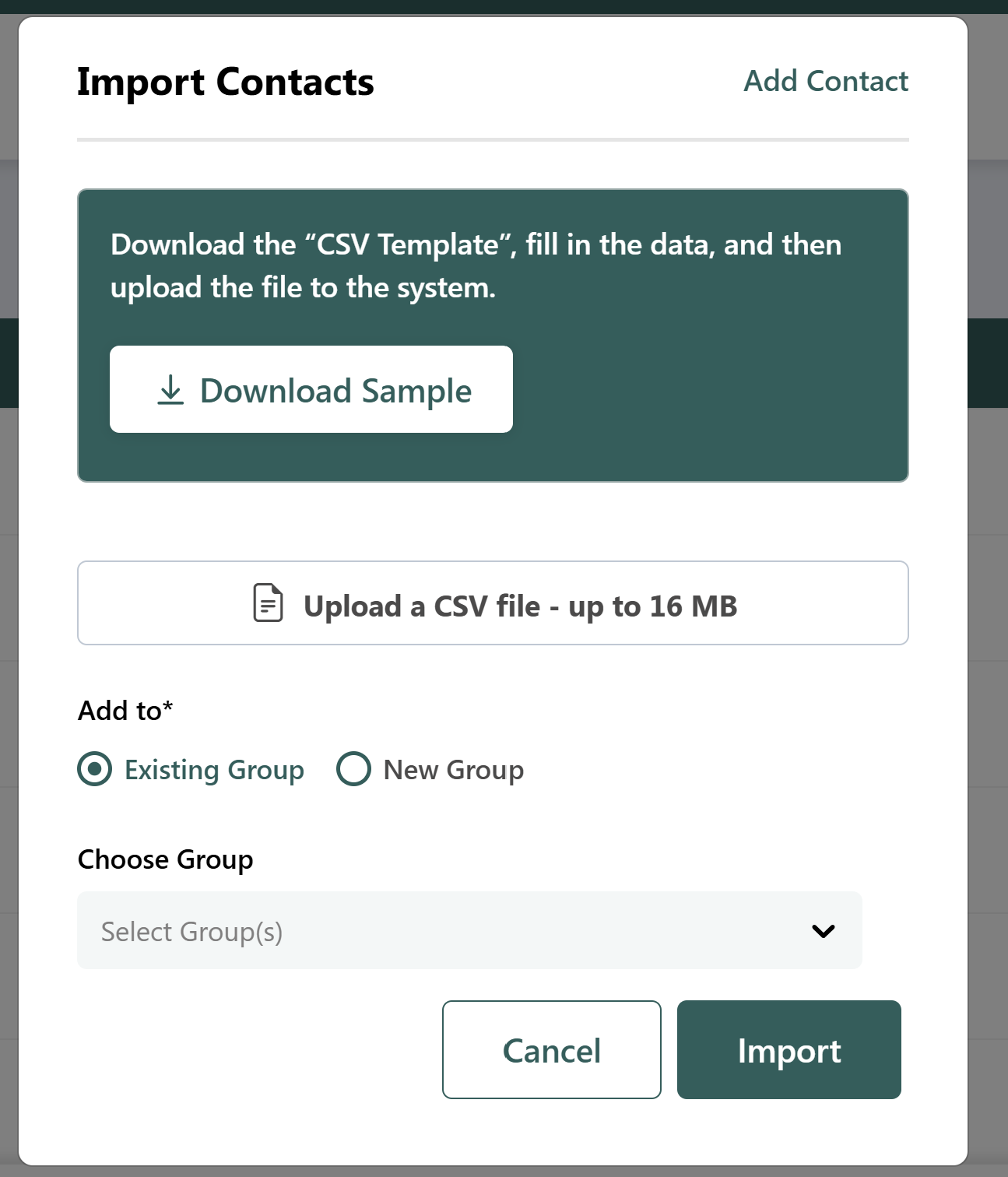
The CSV import feature is useful when you need to add a large number of contacts at once.
Export contacts
The Export Contact feature allows admins and authorized users to download the contact information stored in Utter.
Click Export Contact to export the contact data to a CSV/Excel file for use on your local system.
Edit a contact
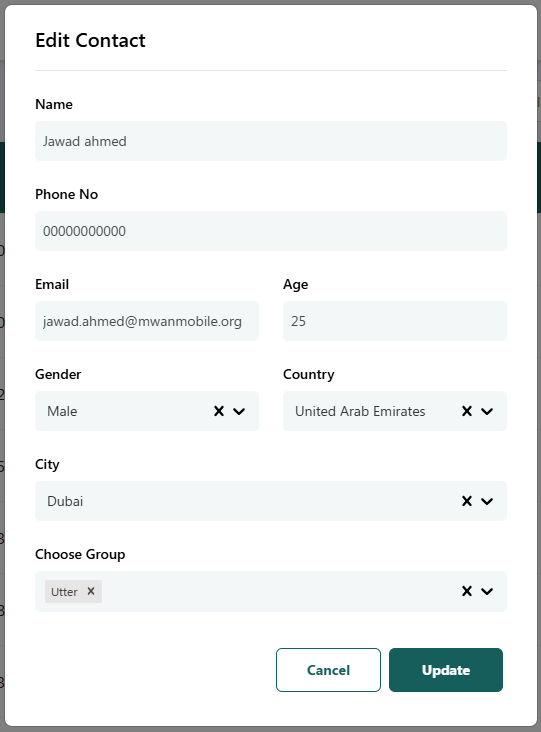
An Edit option is available next to each contact.
- Locate the contact you want to update.
- Click Edit.
- Modify the required contact details.
- Click Update to save the changes.
You can edit:
- Name
- Email address
- Age
- Gender
- Phone number
- Location
- Group membership(s)
If you do not want to save the changes, click Cancel.
Delete a contact
To delete a contact:
- Locate the contact in the Contacts list.
- Click the Delete icon next to the contact.
- A confirmation dialog appears.
- Click Yes, Delete it to permanently remove the contact, or click Cancel to keep the contact.
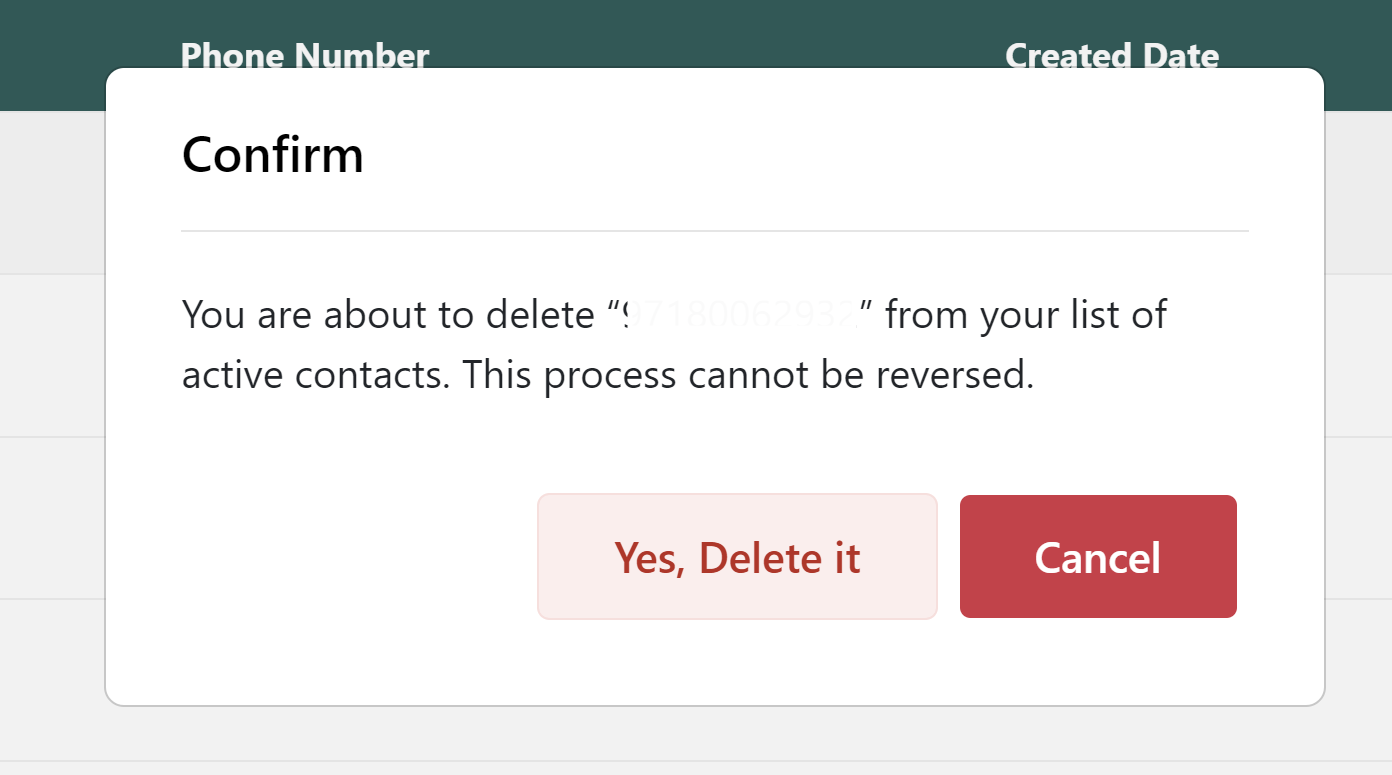
Deleting a contact is permanent and cannot be undone.
Groups
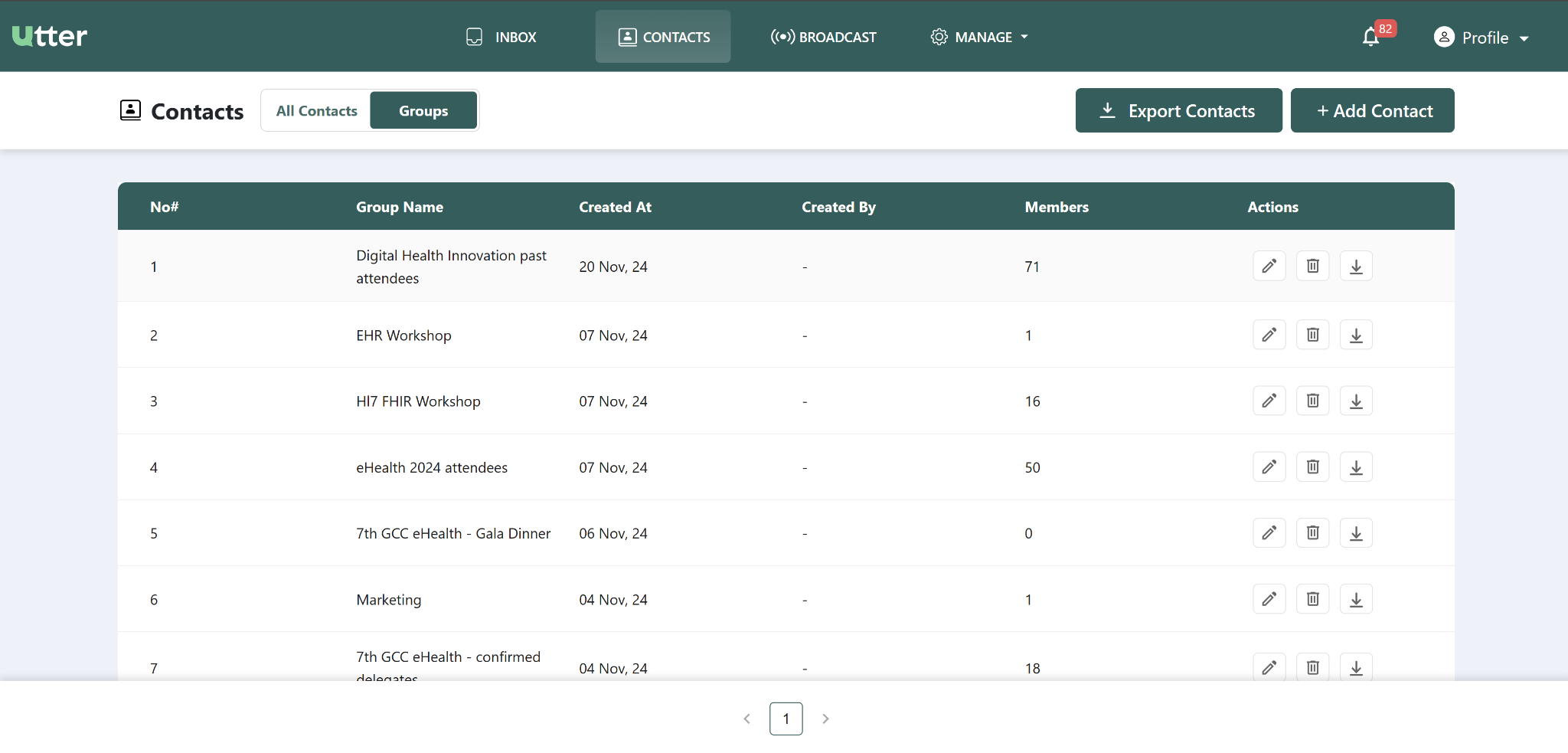
The Groups feature allows companies to organize contacts into categories such as customer segments or interests. Groups can also be used to select multiple contacts for broadcasts or updates.
From the Contacts section, the admin can switch between Contacts and Groups.
Edit a group
To rename an existing group:
- Open the Groups section.
- Locate the group you want to modify.
- Click the Edit icon.
- Change the group name.
- Click Update Group.
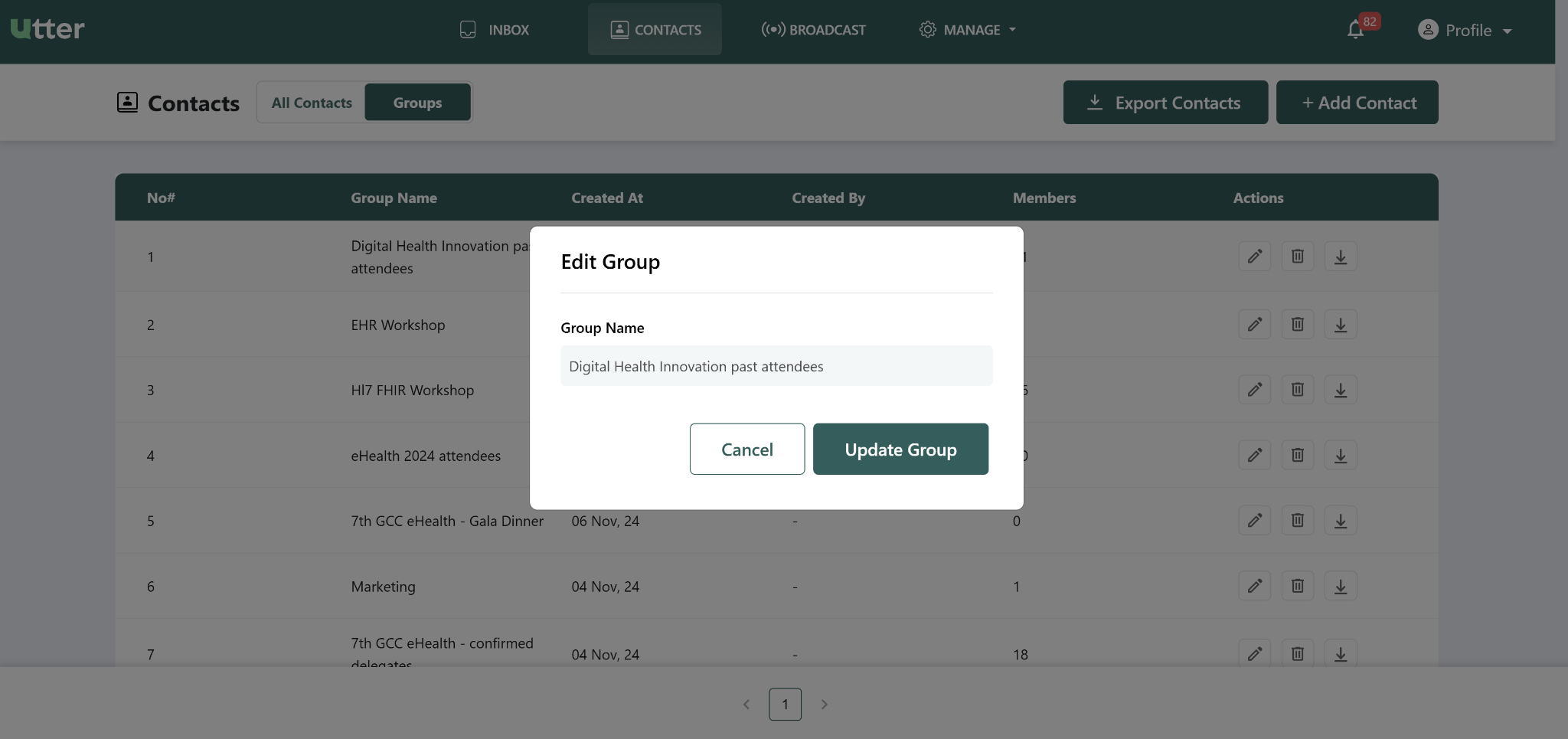
The updated group name will be reflected in the system.
Delete a group
To delete a group:
- Locate the group in the Groups section.
- Click the Delete icon.
- A confirmation dialog appears.
- Confirm the deletion to permanently remove the group.
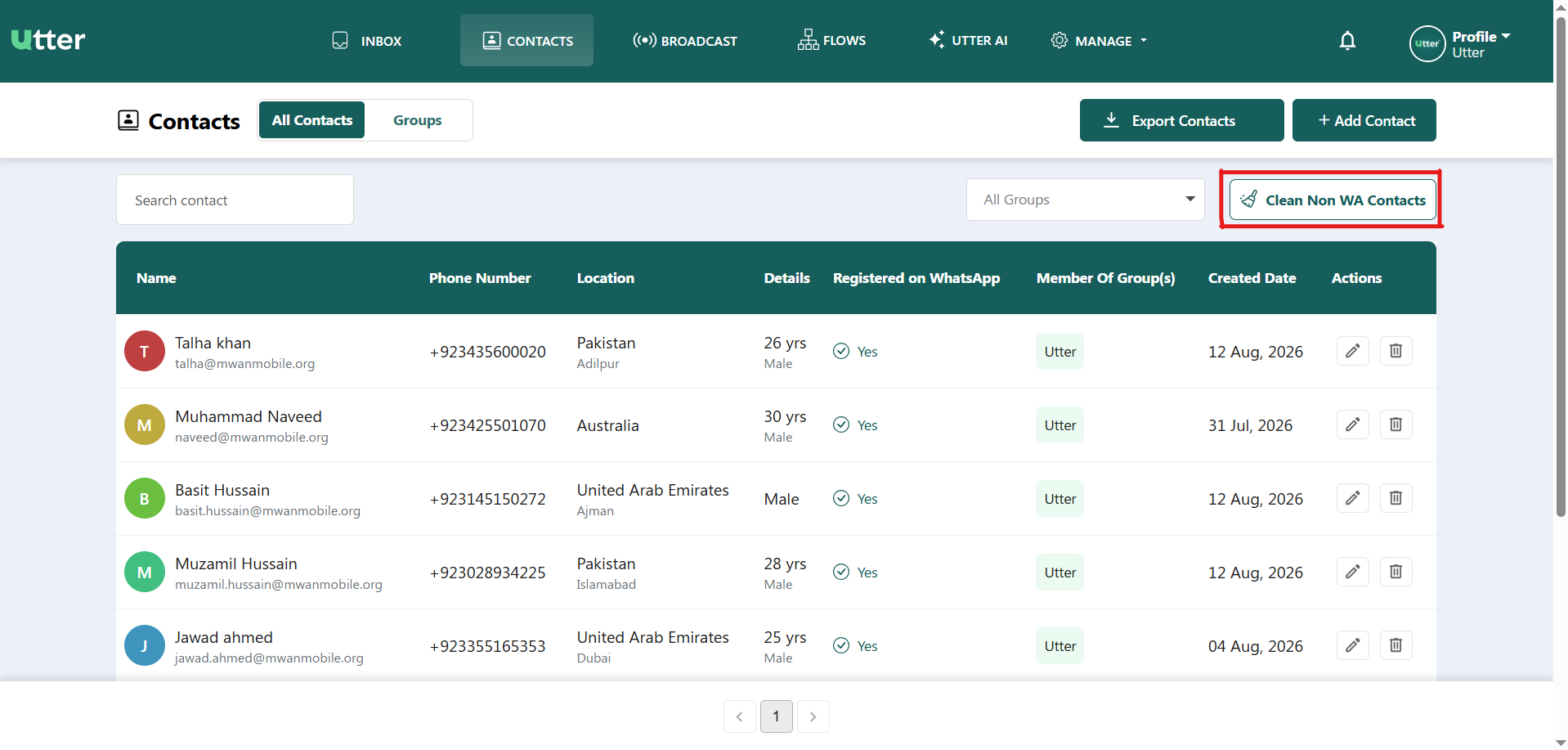
Deleting a group is permanent and cannot be undone.
Download a group
The Download functionality allows the admin to export a CSV file containing the complete list of contacts associated with a specific group.
Use the download option for the required group to save its contact list for further analysis or record-keeping.
Clean non-WhatsApp contacts
The Clean non WA contacts feature helps identify contacts that do not have an active WhatsApp account.
- Click Clean non WA contacts.
- Utter displays a list of contacts that are not on WhatsApp.
- Review the displayed contacts.
- To permanently remove them, click Delete non-WhatsApp contacts.
- If you only want to review the list without deleting anything, close the popup.
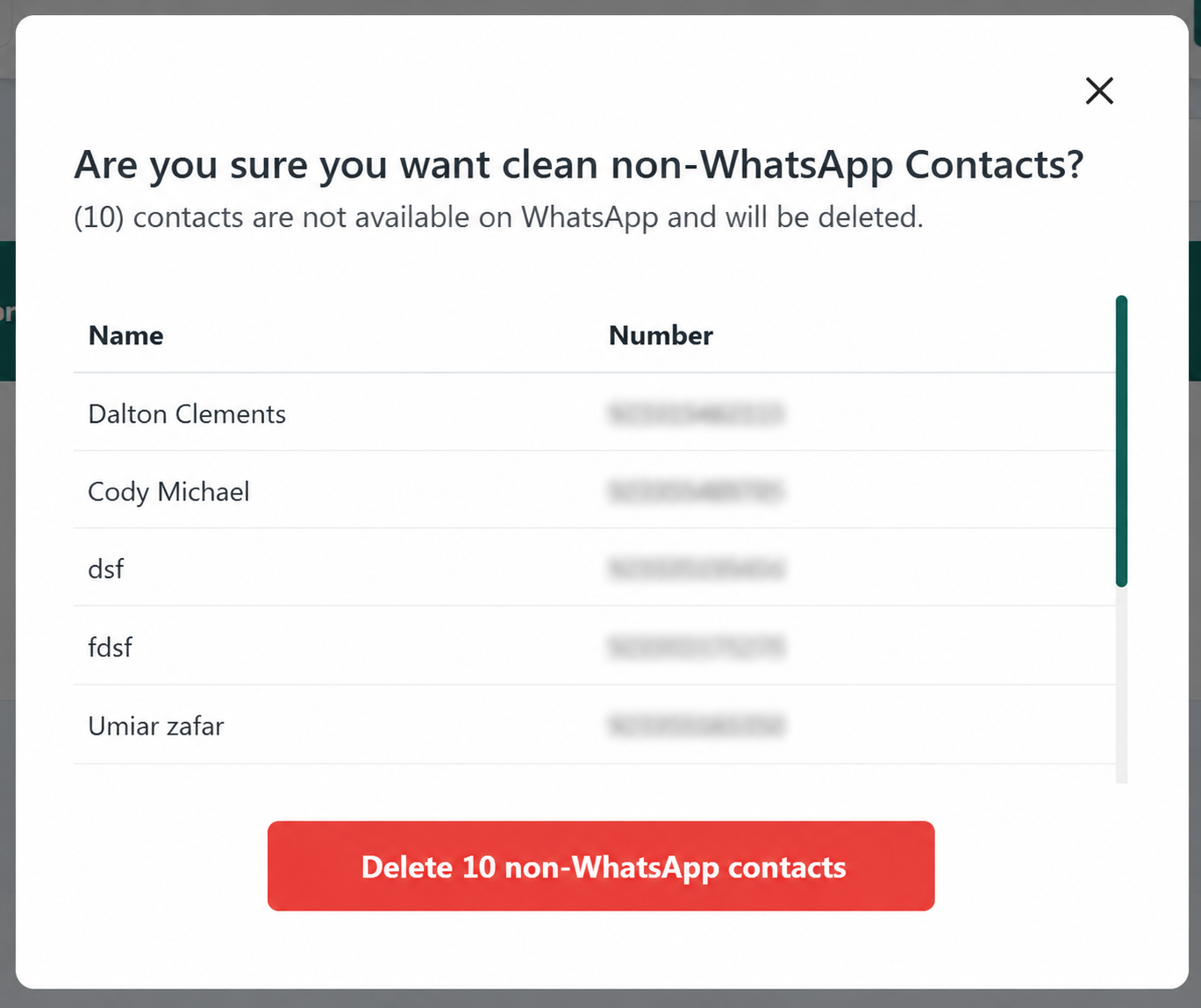
Deleting non-WhatsApp contacts permanently removes them from the system. Close the popup if you only want to review the list.