AI Chat Settings
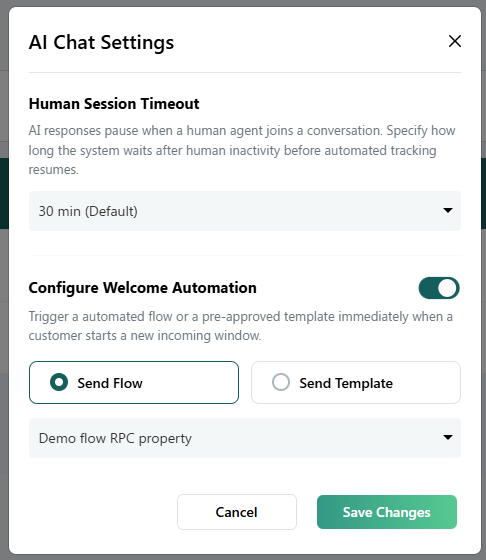
AI Chat Settings control how the AI Agent handles conversations when a customer needs human assistance or when a new conversation starts.
Human Session Timeout
The Human Session Timeout controls how long the AI Agent remains paused after a customer chooses to talk to a human agent.
When the AI does not have the requested information
If a customer asks something that is not available in the AI's trained data, the AI Agent informs the customer that it does not have the required information.
After 5 replies from the AI Agent indicating that it does not have the requested information, an automated flow is sent to the customer.
The flow allows the customer to choose between:
- Continue with the AI Agent
- Talk to a Human Agent
When the customer chooses Human Agent
If the customer selects Human Agent, the AI Agent pauses for the selected timeout period.
For example, if 30 min is selected:
- The customer starts a human session.
- The AI Agent remains paused for 30 minutes.
- After the timeout expires, automated AI responses can resume.
Select the timeout
Choose the required timeout from the Human Session Timeout dropdown.
The uploaded documentation does not list all available timeout values. Select from the options available in the dropdown.
Configure Welcome Automation
The Configure Welcome Automation option allows you to automatically send a flow or template when a customer starts a new incoming conversation.
Enable Welcome Automation
Turn the Configure Welcome Automation toggle ON to enable welcome automation.
You can then choose between two options:
- Send Flow
- Send Template
Send Flow
Select Send Flow when you want to send an automated flow to the customer when they send their first message.
After selecting Send Flow:
- Open the flow dropdown.
- Select the required flow.
Send Template
Select Send Template when you want to send a pre-approved template when the customer starts a new conversation.
The uploaded documentation identifies the Send Template option as using a pre-approved template, but it does not describe the template-selection steps in further detail.
Save your changes
After configuring the required AI Chat Settings, click Save Changes to apply the settings.
If you do not want to save the changes, click Cancel.
Quick reference
| Setting | What it does |
|---|---|
| Human Session Timeout | Controls how long the AI remains paused after a customer chooses Human Agent |
| Configure Welcome Automation | Automatically sends a flow or template when a new incoming conversation starts |
| Send Flow | Sends a selected automated flow after the customer's first message |
| Send Template | Sends a pre-approved template when a new conversation starts |
| Save Changes | Applies the configured settings |
| Cancel | Discards the changes |
Need more detail?
- See the Utter AI guide for training the AI Agent with business information.
- See the Inbox guide for managing customer conversations.
- See the Templates guide for managing message templates.